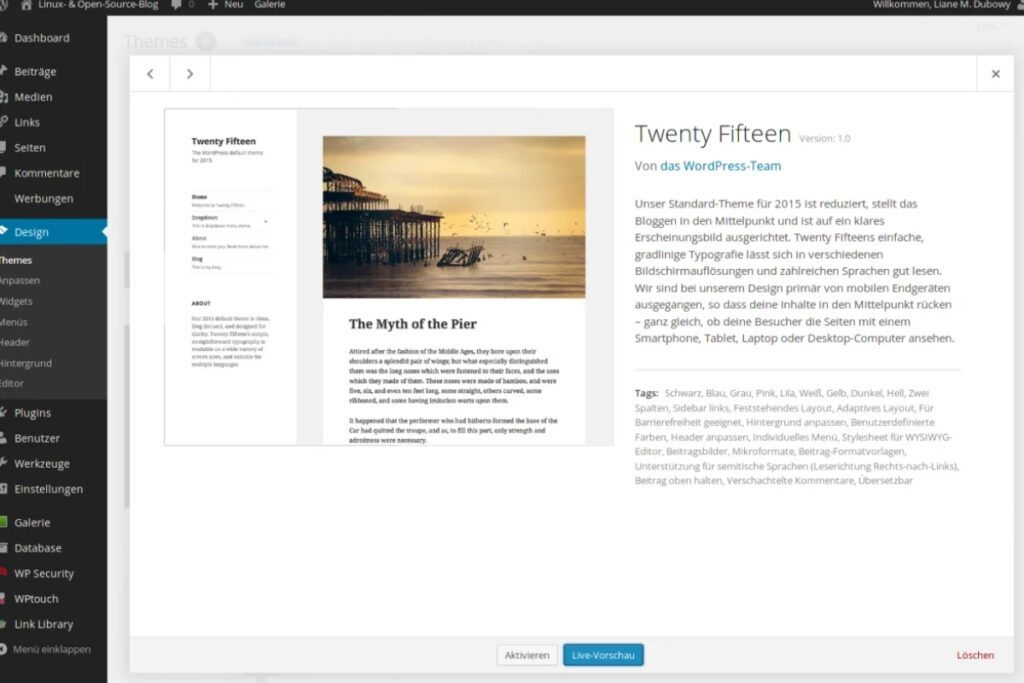
Your website header is the first thing visitors see. It carries your logo site title and main navigation so it shapes every impression of your brand.
Knowing how to edit header in WordPress gives you the freedom to create a look that fits your style and improves user experience.
This guide shows you every method to adjust your header design safely and effectively without needing a developer.For more insights on startup tech and digital growth, explore the Rteetech homepage.
Why Editing the Header Matters
How to edit header in wordpress. The header controls more than appearance. A clear and well designed header improves site navigation and can help with search visibility.
Updating your header lets you highlight key links show seasonal banners or adjust branding elements. With the right approach you can make changes while keeping your site stable and secure.
Preparing to Edit Your Header
Before making changes create a full site backup. This ensures you can restore your site if something goes wrong. Check that your theme supports the WordPress Site Editor because the latest block themes give the most flexibility.
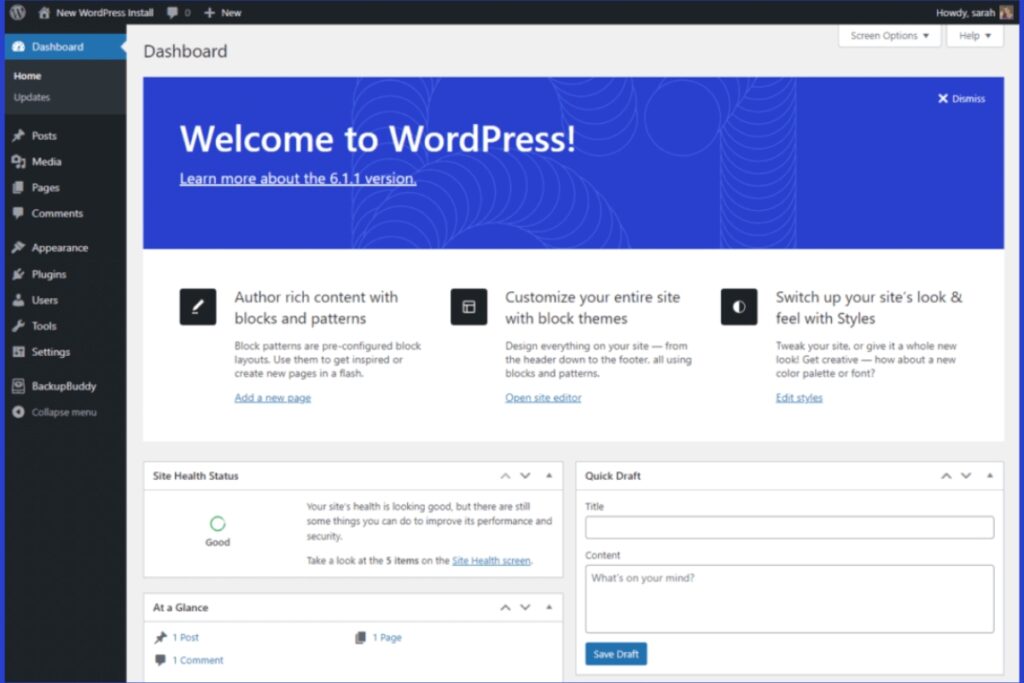
You can confirm this by opening your dashboard and looking for Appearance then Editor.
Method One Use the Site Editor
How to edit header in wordpress. The Site Editor is the easiest way for most site owners. Follow these steps
- Log in to your WordPress dashboard
- Go to Appearance then Editor
- Click the homepage preview or open the Patterns tab to view template parts
- Select List view from the top left icon with three lines
- Choose the Header template part
From here you can move blocks around change fonts adjust colors or add new elements. Any change you make will apply to all pages that use this header.
Add a Header Pattern

If you prefer a premade design WordPress offers header patterns. Inside the Header template part open the settings sidebar. Browse the Design options and click a pattern to apply it.
You can switch patterns at any time and use the Save button to confirm your choice. This method helps beginners get a professional layout without complex design work.
Method Two Customize with the Theme Customizer
How to edit header in wordpress. Some classic themes still rely on the Customizer. Navigate to Appearance then Customize and look for the Header section. Options vary by theme but you can often upload a logo change background color and adjust menu placement.
Always preview changes before publishing to keep the site looking polished.
Method Three Edit Header Code Safely
Advanced users may wish to edit header.php or add custom code. Always create a child theme first so your edits remain safe during updates. Access your files through Appearance then Theme File Editor or use an FTP client. Make small changes at a time and test after each edit.
Style and Layout Tips
- Keep navigation simple so visitors can find pages quickly
- Use contrasting colors for text and background to improve readability
- Make sure your header is mobile responsive so menus work well on phones
- Optimize images for speed to avoid slow load times
These small touches create a professional look and enhance user experience.
Maintaining a Secure Header
How to edit header in wordpress. After editing the header keep WordPress core themes and plugins up to date. Outdated code can lead to security risks or break your layout after updates. Regularly review your site to confirm that menus and logos display correctly on all devices.
Common Mistakes to Avoid
- Editing the main theme files without a child theme
- Forgetting to back up the site before changes
- Adding too many heavy plugins that slow down the header display
Avoiding these mistakes keeps your site stable and fast.
Expanding Your Skills

Once you master how to edit header in WordPress you might explore CSS and PHP basics. These skills allow deeper customization like advanced animations or unique layouts. Even a small amount of knowledge can set your site apart.
Conclusion
Learning how to edit header in WordPress gives you control over your brand’s first impression. Whether you use the Site Editor the Customizer or manual code edits the process is straightforward when you follow these steps.
Take time to plan your design back up your site and test your changes for a professional result.learn and improve with every campaign.earn more about our SEO for business growth strategies instead of just “Rteetech LCC
FAQ
Can I change the header on one page only
Yes use the Site Editor to create a custom template and assign it to a specific page
How do I add a logo to my header
Go to Appearance then Customize or use the Site Editor and select the Logo block to upload your image
Is coding required to edit the header
No the Site Editor and Customizer provide visual tools that allow you to make most changes without code
How can I restore the default header
Open the Site Editor select the Header template and choose Reset to default or reinstall your theme
Will editing the header affect SEO
A clean responsive header improves navigation and can help search engines crawl your site but avoid adding too many scripts or large images
Can I use different headers for different posts
Yes you can create multiple header template parts in the Site Editor and assign them to specific posts or categories for unique designs
How do I add a search bar to the header
Open the Site Editor select the Header template and insert a Search block wherever you want it to appear then save your changes
What if my theme does not support the Site Editor
You can still edit the header using the Customizer or by creating a child theme and modifying header.php with an FTP client or a code editor