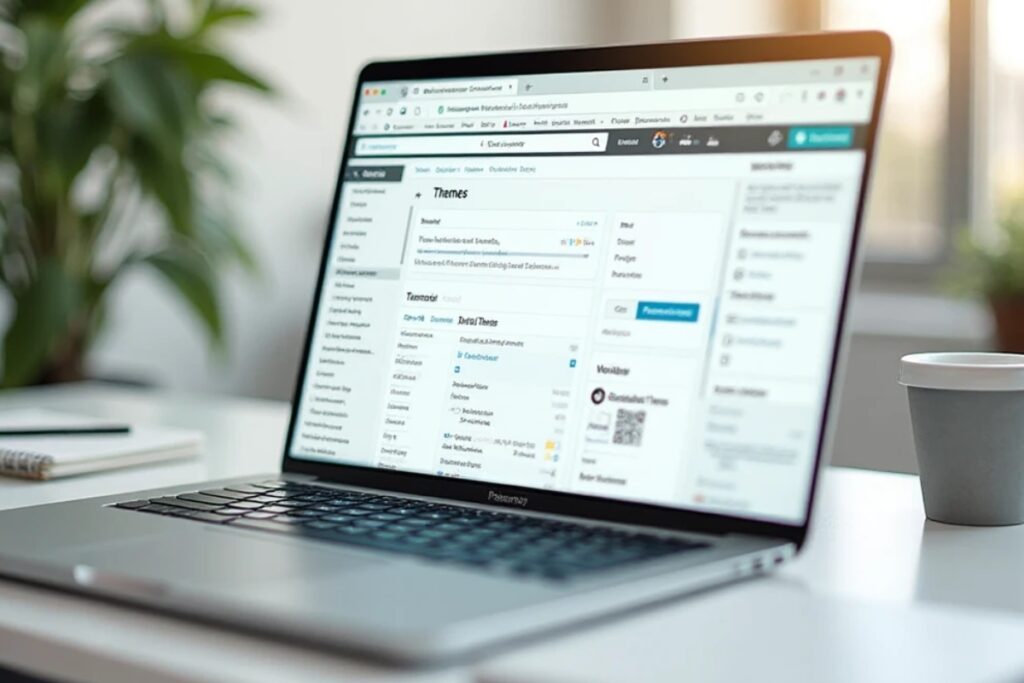
Starting a WordPress site is exciting and one of the first tasks is setting up the design. The theme you select controls the style layout and feel of every page.
Knowing how to install WordPress theme the right way ensures your site looks professional and runs smoothly. This guide explains each method in detail and gives extra tips to help you avoid common mistakes.
Why Installing a Theme Matters

A WordPress theme is more than decoration. It defines structure fonts colors and user experience. Choosing a well built theme improves speed and security.
Installing it correctly keeps your website stable and easy to maintain. Whether you want a clean blog or a powerful business site learning how to install WordPress theme is an essential skill.
Prepare Before You Install
How to install wordpress theme.Before changing your design always prepare your site.
- Back up your website using your hosting control panel or a backup plugin.
- Check compatibility so the new theme works with your WordPress version and main plugins.
- Plan your design by noting current widgets menus and custom code.
If this is a brand new site you can skip backups but still test your theme on a staging site when possible.
Method 1 Install a Theme from the WordPress Directory
How to install wordpress theme.The easiest way is to search the official theme directory from inside your dashboard.
- Log in to your WordPress admin area.
- Go to Appearance > Themes and click Add New.
- Use the search bar or browse Featured Popular or Latest.
- Click Install on a theme you like.
- After installation click Activate to make it live.
This method is perfect for free themes listed on WordPress dot org. You can preview a theme before activation to confirm it fits your vision.
Method 2 Upload a Premium or Custom Theme
If you purchase a premium theme or build your own you will receive a zip file. To upload it:
- Download the theme zip to your computer.
- In the WordPress admin go to Appearance > Themes > Add New.
- Click Upload Theme and choose the zip file.
- Click Install Now then Activate.
Only self hosted WordPress sites can upload themes. WordPress dot com users need a paid plan or must move to WordPress dot org to use this feature.
Method 3 Install a Theme with FTP
How to install wordpress theme.Advanced users may prefer the File Transfer Protocol method. It offers full control but requires care.
- Unzip the theme file on your computer.
- Connect to your hosting account with an FTP client such as FileZilla.
- Navigate to /wp content/themes/.
- Upload the unzipped theme folder.
- Return to Appearance > Themes in WordPress and click Activate.
This method is helpful if the WordPress dashboard upload limit is too small or if you need to troubleshoot a failed install.
After Theme Activation
Once you install and activate a new design there are extra steps to finish the setup.
- Customize appearance through Appearance > Customize or the Site Editor for block themes.
- Install recommended plugins if the theme suggests any.
- Import demo content if provided to match the demo layout.
- Adjust menus and widgets to fit the new layout.
Always preview your site on desktop and mobile to confirm everything displays correctly.
Tips for Choosing the Right Theme
How to install wordpress theme.Selecting a strong theme saves time and effort.
- Pick a responsive design that looks good on phones and tablets.
- Check speed tests on the demo to avoid slow loading pages.
- Read reviews and ratings for insight on support and updates.
- Choose a design that matches your goals so you need fewer custom changes.
Free themes are fine for small projects but premium themes often provide better support and extra features.
Safety and Maintenance
Themes need updates to stay secure. Check for regular updates from the developer. Keep your WordPress core and plugins current as well. Outdated code can create security risks or break your site after a major WordPress update.
Common Mistakes to Avoid
- Installing a theme on a live site without a backup.
- Editing theme files directly instead of using a child theme.
- Activating too many heavy plugins that slow performance.
Avoid these errors and you will keep your site stable and fast.
Conclusion
Learning how to install WordPress theme gives you complete control over the look and feel of your site.How to install wordpress theme. Start with the easy WordPress directory method for free themes or upload a premium design when you are ready for advanced features.
Use FTP only when needed and always back up your site before making changes. With these steps you can create a professional site that reflects your brand and serves visitors well.learn more about our SEO for business growth strategies instead of just “Rteetech LCC”
FAQs
How many themes can I install
You can install many but only one can be active at a time.
Will changing a theme remove my content
Your posts and pages remain but menus and widgets may need adjustment.
Can I switch back to my old theme
Yes. Any installed theme can be reactivated from the dashboard.
What is a child theme
A child theme inherits the design of a parent theme while letting you add custom code without risk during updates.
Do I need coding skills to install a theme
No. All three methods use simple steps. FTP requires more comfort with file management but no coding knowledge.
Can I change a WordPress theme without losing content
Yes you can switch themes without losing your posts pages or media files. Your site content stays safe but widgets and custom settings may need reconfiguration after the switch.
How often should I update my WordPress theme
You should update your WordPress theme whenever the developer releases a new version. Updates improve security fix bugs and ensure compatibility with the latest WordPress core.
What should I do if a theme causes an error
If activating a theme breaks your site you can log in to your hosting control panel or use FTP to rename the theme folder. WordPress will automatically revert to a default theme so you can troubleshoot safely.