The footer is the bottom part of your website that visitors see on every page. It may look small, but it plays a very big role. Most websites use the footer to show copyright text, links, contact details, or social media icons. If you run a business, blog, or online store, editing the footer makes your website look more professional.
In this guide, you will learn how to edit footers in WordPress step by step. For more insights on startup tech and digital growth explore the Rteetech homepage.
What is the Footer in WordPress?
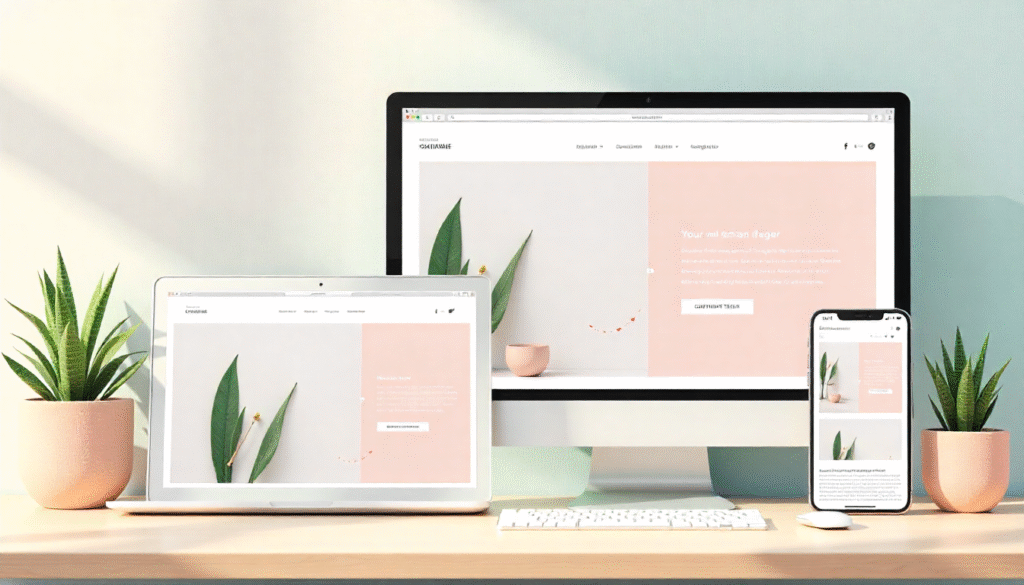
The footer is the bottom part of your WordPress website that visitors see on every page. Many people use this space for copyright text, a link to the privacy policy, or basic company details. Even though it looks small, the footer is actually very important for both design and trust.
Think of it like the closing part of your website. When someone scrolls down, they often look at the footer to find contact details, quick links, or even your social media profiles.
A clean and useful footer shows visitors that your site is complete and professional.If you run a business website, you can add your phone number, email, and office address at the bottom.
If you have a blog, you can add quick links to popular categories or your About page. This makes it easy for people to connect with you or explore your content without going back to the top of the page.
That is why knowing How to edit footer in wordpress is valuable for everyone from beginners building their first site to professionals managing large websites. A well-edited footer improves navigation, builds trust, and leaves a positive final impression on visitors.
Why Edit the Footer in WordPress?
How to edit footer in wordpresss is important because it helps you make the bottom section of your website more useful, professional, and personal.
By default, many themes show “Powered by WordPress” or some generic text. If you leave it unchanged, your site may look incomplete or unbranded.
When you edit the footer, you can replace that default text with your own message, such as copyright details or a custom tagline.Another reason is navigation and trust. The footer is a place where visitors often look for links like Privacy Policy, Terms of Service, or Contact information.
Adding these links makes your site look trustworthy and compliant with web standards. Businesses often use this space to include their address, phone number, or social media icons, making it easier for visitors to connect with them.
The footer is also a great spot for marketing. You can add a newsletter signup form, highlight an offer, or showcase important links that bring people back to your main content. This way, even if visitors scroll all the way down, you still give them a chance to take action.
In short, editing the footer is not just about design, it improves branding, builds credibility, helps with SEO through internal links, and makes the user experience smoother. That is why learning How to edit footer in wordpress is valuable for every website owner.
Methods: How to Edit Footer in WordPress
There are different ways how to edit footer in wordpress depending on your theme and setup. Below are the most common methods explained in easy steps.
1. Edit Footer Using the Theme Customizer
Most modern themes allow you to edit the footer from the WordPress Customizer.
- Go to Appearance customize in your dashboard.
- Look for the Footer section.
- Change the text, colors, or layout as needed.
- Save changes and refresh your site.
This method is simple and does not require coding.
2. Edit Footer Widgets
Many WordPress themes come with widget areas in the footer.
- Go to Appearance – Widgets.
- Add widgets like text, menu, or social icons.
- Arrange them in different columns.
- Save and check your footer.
Widgets give flexibility and are easy to use even for beginners.
3. Edit Footer Using the Theme Editor
If you want full control, you can edit the footer file directly.
- Go to Appearance theme File Editor.
- Select footer.php from the list.
- Carefully edit the text or code.
- Save the file.
Be careful when editing code. A small mistake can break your site. Always make a backup first.
4. Edit Footer with a Page Builder Plugin
If you use Elementor, Divi, or Beaver Builder, you can design a custom footer.
- Open your page builder.
- Choose the footer section template.
- Drag and drop elements like text, images, or buttons.
- Save and apply the design to your site.
This is a flexible method if you want a unique design.
5. Edit Footer with a Plugin
If your theme does not support footer editing, you can use plugins.
Popular plugins:
- Insert Headers and Footers
- Remove Footer Credit
- Elementor Pro
These plugins help you add custom scripts, remove default text, or build a completely new footer.
Common Elements You Can Add in Footer
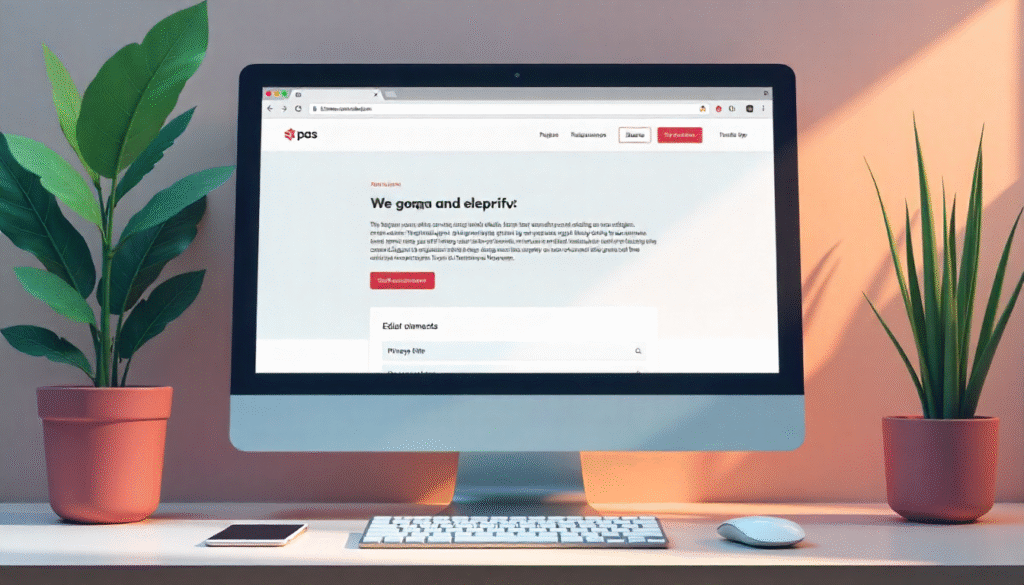
Here are some popular items you can include in your footer:
| Element | Purpose | Example |
| Copyright Text | Show ownership | © 2025 Your Website |
| Footer Menu | Quick navigation | Home, About, Contact |
| Social Links | Connect visitors | Facebook, Twitter, LinkedIn |
| Contact Info | Easy reach | Email, phone number |
| Newsletter Signup | Build subscribers | Email form |
| Logo | Branding | Company logo image |
Best Practices for Footer Design
To make your footer effective:
Keep it Clean and Simple
A footer should not look crowded. Keep the design minimal so visitors can quickly find what they need. Too many elements in the footer can confuse users and reduce its effectiveness.
Add Only Useful Links
Do not fill the footer with every page of your site. Instead, include only important links like Privacy Policy, About, Contact, or key services. This makes the how to edit footer in wordpress helpful without being overwhelming.
Use Readable Font Size
The footer text is often smaller than the main content, but it should still be easy to read. Use a clear font style and make sure the size is comfortable for all devices. Visitors should never struggle to read your footer.
Make Sure it Looks Good on Mobile
Most people browse websites on their phones. Your footer must be mobile-friendly, with links and text properly aligned. A responsive footer ensures users can interact with it easily no matter what device they are on.
Use Consistent Colors with Your Theme
The footer should match the overall design of your site. Using the same colors, fonts, and style creates a professional look. If your site has a dark theme, a dark footer works best; if it is light, a light footer looks more natural.
Do Not Overload with Too Much Text
Adding too much text in the footer makes it look messy and discourages visitors from reading it. Keep the content short like a tagline, a few links, or contact info. A simple footer works better than one filled with unnecessary details.
SEO Benefits of Editing Footer
When you know how to how to edit footer in wordpress, it can help with SEO too. Adding internal links, sitemap, or schema markup can improve visibility. A footer with important keywords and links can guide search engines and help users find content faster.
Mistakes to Avoid

- Adding too many links that confuse users
- Using very small text size
- Copy-pasting long content in footer
- Forgetting to update copyright year
- Editing footer.php without backup
Final Thoughts
Learning how to edit footer in wordpress is simple once you know the options. You can use the Customizer, widgets, page builder, or plugins depending on your needs. A well-designed footer improves trust, navigation, and SEO. Keep it clean, useful, and professional.
Remember: your footer may be the last thing visitors see, but it can leave a lasting impression. learn more about our SEO for business growth strategies instead of just “Rteetech LCC”
FAQs
How do I remove “Powered by WordPress” from the footer?
You can remove it from the Customizer or by editing footer.php.
Can I edit the footer without coding?
Yes, use Customizer, widgets, or plugins.
Which plugin is best for how to edit footer in wordpress?
Plugins like Remove Footer Credit or Elementor Pro are popular.
How do I add social media links to the footer?
Use a social widget or add links manually in the footer area.
Can I add a logo in the WordPress footer?
Yes, most themes allow logo upload in the footer section.
How do I change the footer color and style?
Use the WordPress Customizer or a page builder plugin.
Is it safe to edit footer.php directly?
Yes, but always back up your site before making changes.
Can I create different footers for different pages?
Yes, with page builders or advanced themes you can design custom footers.