A quick site gives visitors a smooth experience and helps search ranking. If your pages load slowly or show outdated changes one proven fix is to WordPress clear cache. This action forces WordPress to rebuild stored files so the newest version appears to everyone.
In this guide you will learn what cache is why it matters and how to clear it safely without slowing your site for long.For more insights on startup tech and digital growth explore the Rteetech homepage.
What Is Cache?
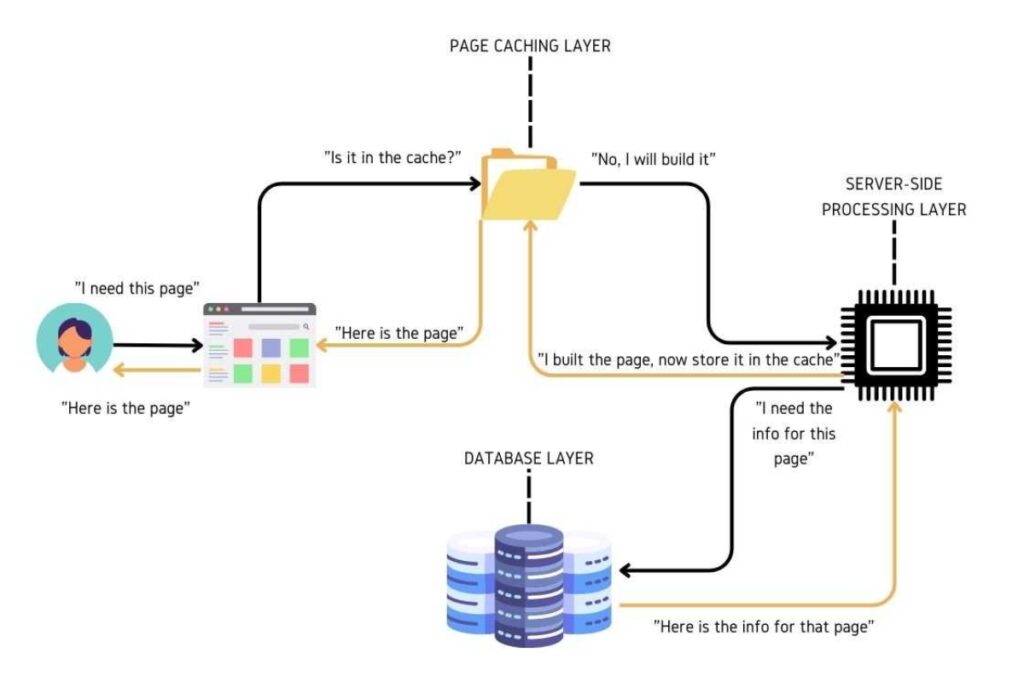
Cache is a storage layer that keeps copies of website data so pages load faster. Instead of rebuilding each page on every visit WordPress sends a saved copy. This process reduces server work and speeds up delivery.
The three common types are:
- Browser cache which saves files on the visitor computer
- Page or edge cache which stores entire pages on servers close to the visitor
- Object cache which saves database queries for quick reuse
Cache is vital for speed yet when files grow old or corrupted it can cause broken layouts or missing updates. That is when you need to WordPress clear cache.
When to Clear Cache
Do not treat cache clearing as a daily habit. Use it only when you see problems such as:
- A new theme or design change fails to appear
- A plugin update creates layout or function errors
- A site migration or content delivery change
- An unexplained slow down or missing content
If the site looks correct and runs quickly you do not need to clear cache. Frequent clearing can slow the site while new files rebuild.
Methods to WordPress Clear Cache
Different setups call for different actions. Below are reliable methods.
Clear Cache in a Hosting Dashboard
Managed WordPress hosts often provide a built in clear button.
- Sign in to the hosting panel
- Find the performance or cache area
- Click purge or clear cache
This action removes both page and object caches at once.
Clear Cache with a Plugin

Self hosted WordPress users can add a caching plugin such as WP Super Cache or W3 Total Cache.
- Install and activate the plugin
- Go to the plugin settings
- Press the clear or purge cache button
Only use one caching plugin at a time to avoid conflict.
Clear Browser Cache
Sometimes the issue sits on your own device. To refresh browser cache:
- On Windows press Ctrl Shift Delete
- On Mac press Command Shift Delete
- Choose cached images and files and clear
This forces the browser to load new files from the server.
Use WP CLI
Advanced users may choose command line control. The basic command is
wp cache flush
This flushes object cache and suits developers comfortable with terminal tools.
WordPress.com Steps
If you run a WordPress.com Business or Commerce plan you can clear cache directly in the dashboard.
- Click the top left WordPress.com icon to open the sites list
- Select the site and go to Settings
- Under Server pick Caching
- Click Clear all to remove both edge and object cache
Lower level plans clear cache automatically so manual work is rarely needed.
Global Edge Cache
Some managed hosts and WordPress.com offer global edge caching. This places your content on multiple servers worldwide. Visitors receive data from the server closest to them for better speed. After major updates use the dashboard to WordPress clear cache so each location receives the newest version.
Tips to Avoid Frequent Cache Clearing
A stable well built site will rarely need manual purging. Follow these steps:
- Keep plugins and themes updated to reduce conflicts
- Test large changes on a staging site before live deployment
- Use a trusted caching plugin or managed host to handle automatic refresh
- Check speed and health with tools such as PageSpeed Insights or GTmetrix
These habits limit the need to clear cache and keep performance high.
Troubleshooting After Cache Clearing
After you WordPress clear cache the site might feel slower for a short time. This is normal while new cache files build. If issues remain check these points:
- Make sure plugins are compatible with the latest WordPress version
- Review theme files for outdated code
- Contact your host if server errors appear
A single purge usually resolves common display problems.
Conclusion
Knowing how to WordPress clear cache keeps your site fresh and quick. Cache speeds delivery but old files can cause design errors or hide updates. By clearing it only when needed you maintain both performance and stability.
Use the method that fits your hosting plan whether plugin hosting dashboard browser refresh or command line and your visitors will always see the most current version of your website.learn more about our SEO for business growth strategies instead of just “Rteetech LCC”
FAQs
Will clearing cache break my site?
No. It only removes temporary files. Your site may load a bit slower at first while cache rebuilds.
How often should I WordPress clear cache?
Only when fixing display issues or after major theme or plugin updates.
Does clearing cache improve SEO?
Indirectly yes. A fast accurate site creates a better user experience which search engines value.
Is browser cache different from WordPress cache?
Yes. Browser cache lives on each visitor computer while WordPress cache lives on the server. Sometimes you must clear both.
What if I cannot find a clear cache button?
Your host may handle caching automatically. In that case clear browser cache or ask support for help.
What is the fastest way to WordPress clear cache
Use your hosting panel or a caching plugin with a single clear cache button to refresh site data quickly
Does WordPress clear cache affect visitor experience
Visitors may notice a brief slowdown while new cache files rebuild but the site soon returns to normal speed
How often should I perform WordPress clear cache
Clear cache only after major updates or when display issues appear and avoid routine clearing for normal performance