
Learn how to fix slow DNS lookup on Windows, Android, and Linux. Improve browsing speed, troubleshoot DNS latency, and choose the best servers.
Slow DNS lookup can quietly sabotage your internet experience. Whether pages load sluggishly, streaming buffers constantly, or apps struggle to connect, delayed DNS resolution is often the culprit.
In this guide, we’ll walk you through why DNS lookups slow down, how to diagnose them, and practical fixes for Windows, Android, Linux, and network environments including PowerShell techniques for advanced users. By the end, you’ll know how to fix slow DNS lookup and make your browsing smoother.
What Is DNS Lookup and Why Its Speed Matters?
DNS (Domain Name System) translates website names into IP addresses. Every time you open a website, your device queries a DNS server. Slow responses from these servers can delay page loads and app performance. Symptoms include:
- Pages are taking longer than usual to open
- Frequent “DNS server not responding” errors
- Apps failing to connect or slow downloads
Understanding the root causes helps you fix the problem efficiently.
How to Confirm It’s Actually a DNS Problem?
Before you switch DNS servers or start flushing cache, take a minute to confirm that DNS is really the issue. Many users think their “internet is slow,” but in reality, the delay could be coming from the website’s server, hosting provider, or even a VPN, not DNS itself.
Making changes without diagnosing the root cause can waste time and sometimes even make things worse.
DNS Diagnosis Checklist
Use this simple checklist to identify whether DNS lookup latency is actually causing the delay:
| What You Notice | What It Likely Means |
|---|---|
| First website load is slow, but refresh is fast | DNS lookup delay (browser cached the IP after first request) |
ping google.com responds quickly, but nslookup google.com takes longer | Your DNS resolver is slow |
| Only one specific website is slow | The issue may be on that website’s DNS or hosting side |
| Websites load faster when VPN is turned off | VPN DNS routing may be causing latency |
How to Test DNS Response Time?
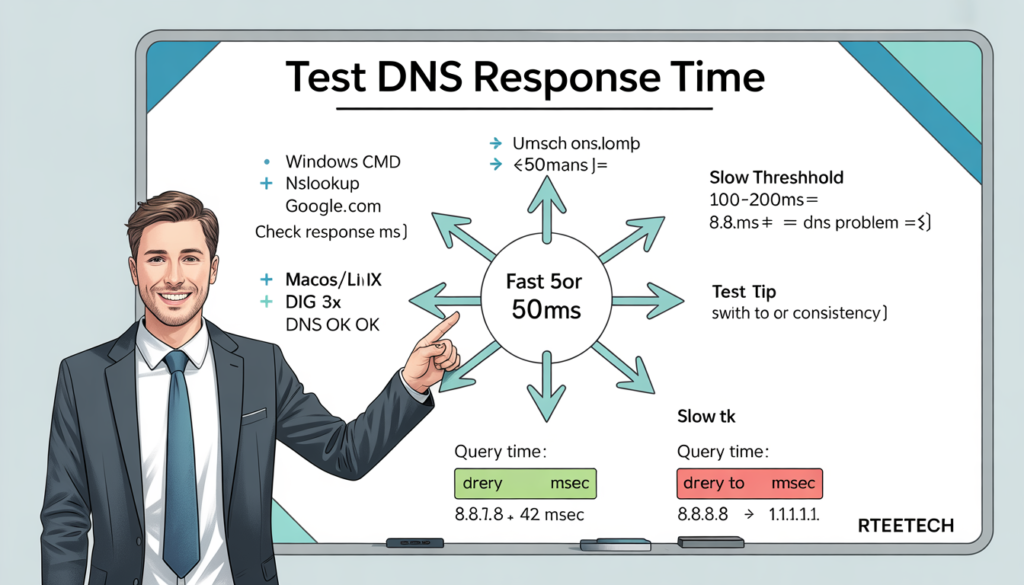
On Windows, open Command Prompt and run:
" nslookup google.com "

On macOS or Linux, run:
" dig google.com "
If the response consistently takes more than 100–200ms, your DNS resolver may be contributing to slow page starts. If it’s under 50ms, DNS is probably not your problem.Common Causes of Slow DNS Lookup
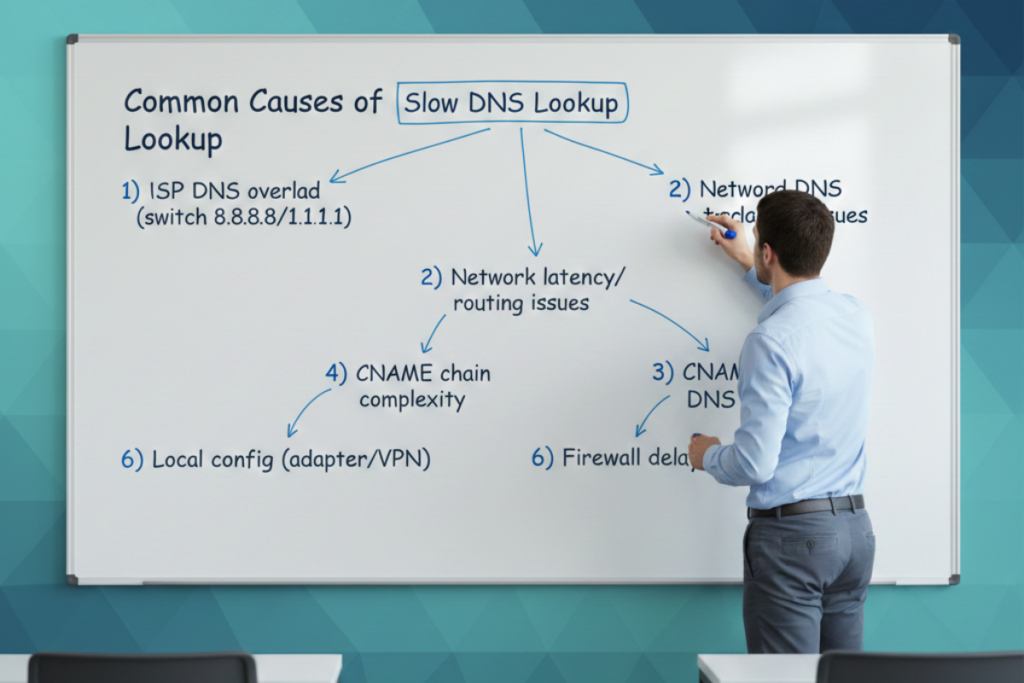
DNS Server Issues
Your ISP’s DNS server might be overloaded or geographically distant. Public servers like Google (8.8.8.8) or Cloudflare (1.1.1.1) are generally faster and more reliable.
Network Latency and Routing
Slow DNS responses can stem from network congestion or inefficient routing between your device and the DNS resolver. Using a wired connection or checking router performance can help.
DNS Cache Problems
Corrupted or outdated DNS caches can add milliseconds to lookup times. Clearing your cache often resolves latency issues.
Recursive Lookups and Chain Complexity
Multiple CNAME records or misconfigured authoritative servers can increase lookup times.
Local Configuration Issues
Incorrect network adapter settings, proxies, or VPNs can slow DNS resolution.
Firewall and Security Filters
Some security software inspects DNS requests, which may delay responses.
How to Diagnose Slow DNS Lookup?
Basic Testing
Use nslookup (Windows, Linux) or dig (Linux/macOS) to test lookup speed for specific domains. A response time over 100 to 200ms often indicates slowness.
PowerShell Diagnostics (Windows)
The Resolve-DnsName cmdlet lets you test DNS queries with specific servers: Resolve-DnsName example.com -Server 1.1.1.1
Compare different servers to identify the fastest.
Continuous Testing
Tools like DNS Benchmark, PingPlotter, or namebench can measure DNS performance over time, helping you find the optimal server.
Actionable Fixes: Step by Step
General Network Fixes
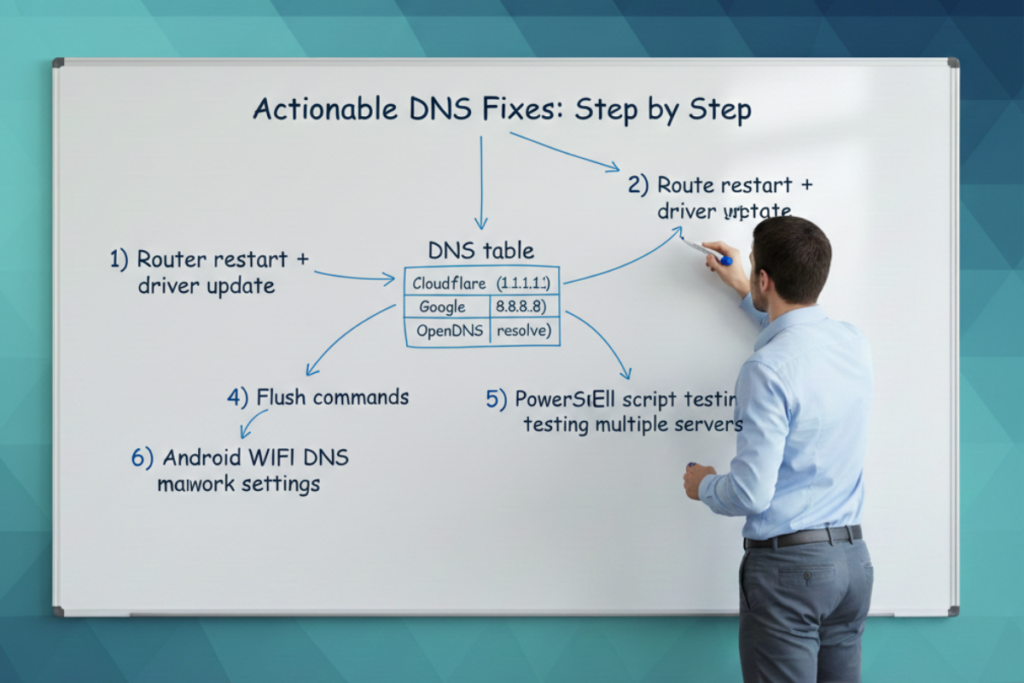
- Restart your modem/router to clear temporary DNS issues.
- Update network adapter drivers to ensure smooth resolution.
- Check for VPNs or proxy software that might interfere with DNS queries.
Change DNS Resolver
Switch to faster DNS servers:
| Provider | Primary DNS | Secondary DNS |
| Cloudflare | 1.1.1.1 | 1.0.0.1 |
| Google DNS | 8.8.8.8 | 8.8.4.4 |
| OpenDNS | 208.67.222.222 | 208.67.220.220 |
Tip: Use DNS Benchmark to test which server is fastest in your region.
Flush DNS Cache
- Windows: ipconfig /flushdns
- Mac: sudo killall -HUP mDNSResponder
- Linux: sudo systemd-resolve –flush-caches
This removes outdated records that may slow queries.
PowerShell-Based DNS Fixes
Automate DNS checks and logs using PowerShell scripts:
“ $servers = @(“1.1.1.1″,”8.8.8.8”)
foreach ($s in $servers) {
Resolve-DnsName example.com -Server $s
} “
Track which server gives consistent low-latency responses.
System and Browser Tweaks
- Disable IPv6 if it causes slow AAAA record lookups.
- Clear browser DNS cache (chrome://net-internals/#dns).
- Enable DNS prefetching for faster domain resolution.
Android-Specific Fix
- Go to Wi-Fi settings → Modify Network → Advanced → Set DNS 1 and DNS 2 manually.
- Common cluster keyword: Powershell DNS lookup on Android using Cloudflare or Google DNS significantly improves speed.
Windows 10 Specific Fix
- Use network settings to set custom DNS servers.
- Flush DNS and restart network adapter.
Advanced DNS Optimization

DNS Caching Techniques
Set up local resolvers like Pi-Hole or Unbound for persistent caching, reducing repeated lookups.
Reduce Lookup Chains
Minimize multiple CNAME redirects to reduce latency.
CDN and DNS Integration
Using CDNs with optimized DNS can improve global resolution speed.
Choosing the Right Servers
- Cluster keyword: What is the benefit of 9.9.9.9 DNS? Quad9 offers security filtering along with fast resolution.
Testing & Verifying Fixes
- Run nslookup, dig, or PowerShell scripts before and after fixes.
- Log response times to confirm improvement.
- Use tools like DNS Benchmark for ongoing monitoring.
Common Mistakes to Avoid
- Ignoring TTL impact on caching
- Not testing multiple DNS servers before switching
- Forgetting firewall/security software impact
Final Thoughts
Slow DNS lookup can make your browsing and apps feel sluggish even when your internet speed is fine. The best fix is to first test DNS response time using nslookup, dig, or PowerShell, then flush the DNS cache and switch to a faster DNS resolver.
If the problem persists, check VPN/firewall filters, IPv6 delays, and router DNS settings. By applying these steps, you can reduce DNS latency and enjoy faster, more reliable internet performance.
FAQs
What is a good DNS lookup time?
Ideally, under 50ms locally. Over 100ms may be noticeable in browsing speed.
Why is DNS lookup slow on my PC but fast on another device?
Local cache issues, adapters, or software (VPN/firewall) may delay queries on specific devices.
Does changing DNS improve internet speed?
Yes, especially if your ISP DNS is slow or geographically distant. Testing multiple servers is recommended.
Can firewall or antivirus slow DNS?
Yes, some security programs inspect queries, adding latency.
How often should I flush DNS cache?
Every few weeks or after changing DNS servers to prevent outdated records.