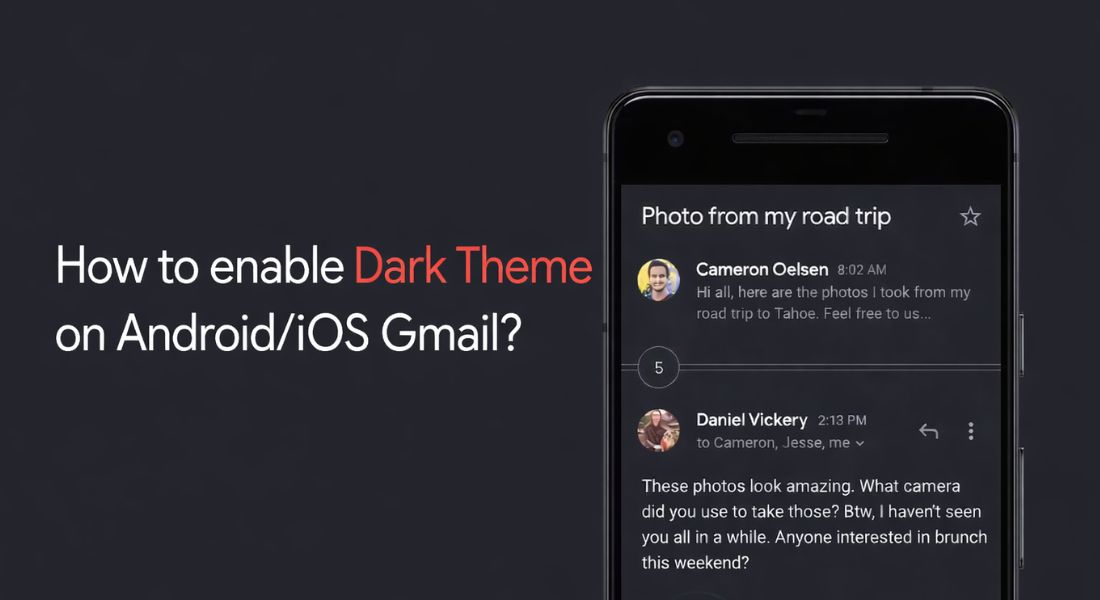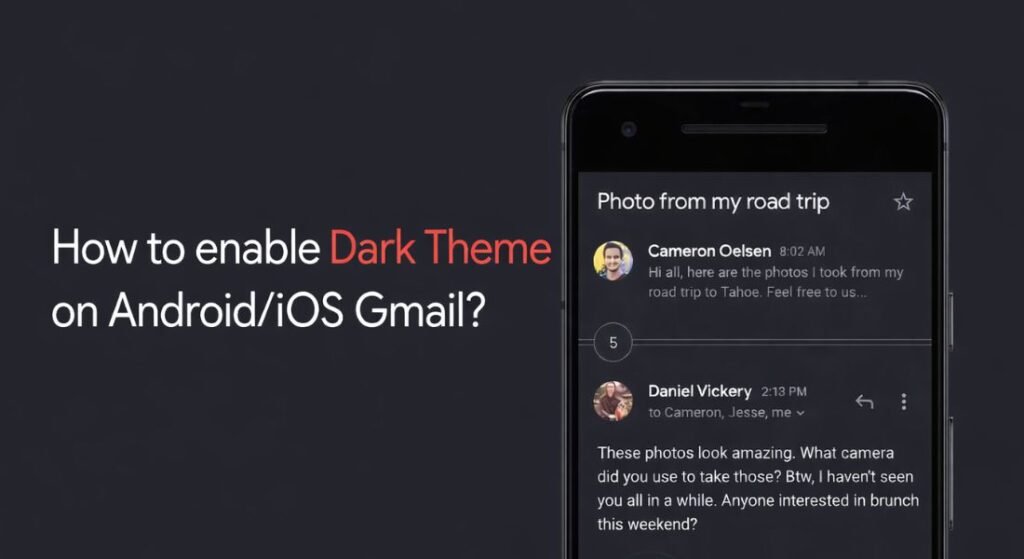
Gmail dark theme on Android replaces the traditional bright white interface with a sleek eye friendly dark palette. This feature utilizes OLED technology to turn off individual pixels which significantly preserves battery life while reducing blue light exposure during night time use.
Users often enable this setting to maintain a professional synchronized look across their device’s entire operating system. Mastering these configurations ensures your inbox remains perfectly legible in low light environments without compromising visual clarity.
This guide provides the exact steps to activate the theme troubleshooting missing settings and optimize your mobile productivity.
Navigating the Manual and System Wide Dark Mode Settings
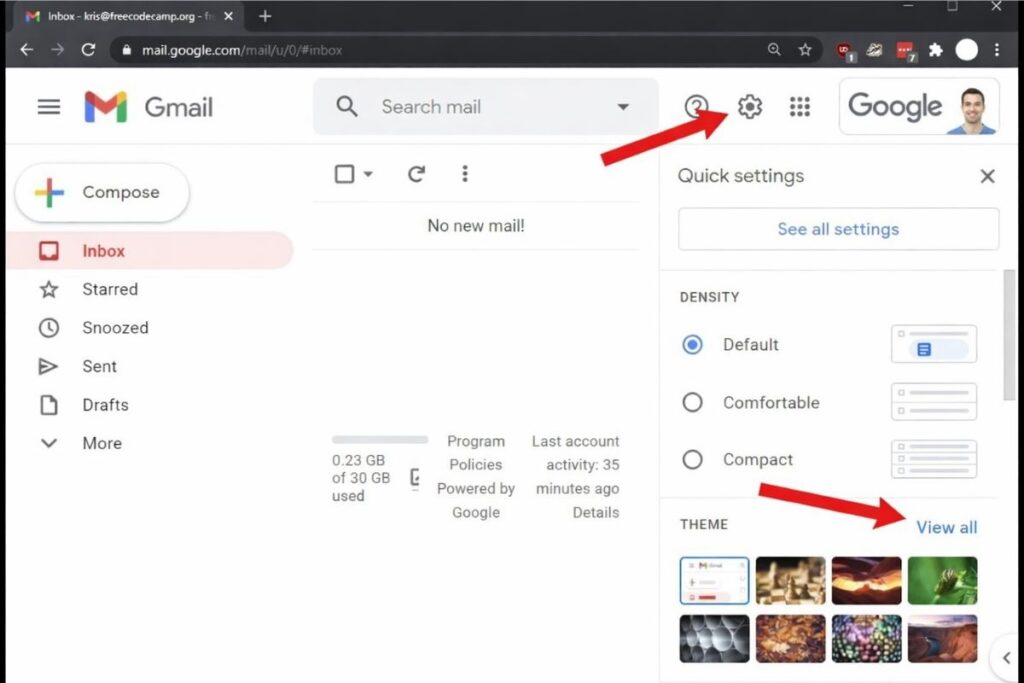
Modern mobile operating systems have transitioned toward dark aesthetics to cater to the physiological needs of users who spend hours interacting with digital screens.
Enabling the dark theme within the Gmail application involves navigating the internal general settings where you can manually override or synchronize the app with your Android systemwide preferences.
To do this simply open your Gmail app, tap the hamburger menu in the top left corner and scroll down to the settings gear. Once inside the general settings the theme option allows you to select between light dark or system default.
This architectural shift is particularly beneficial for devices running Android 10 and above as it utilizes the system’s native rendering engine to flip the color hex codes of every UI element from light to dark creating a cohesive visual flow.
Troubleshooting the Missing Theme Option and Android Compatibility
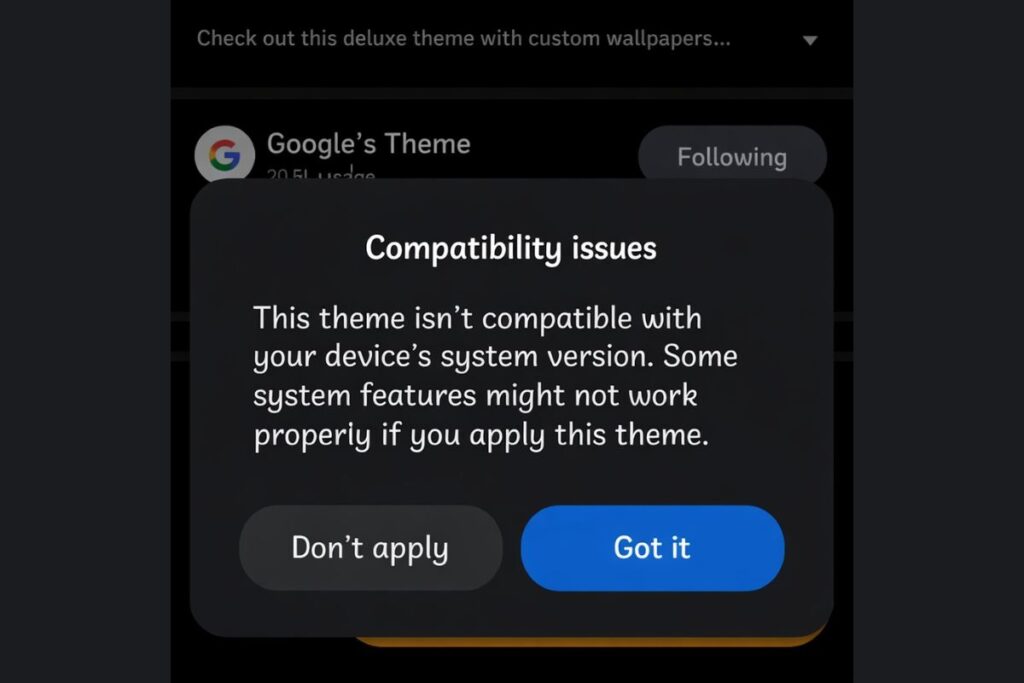
A common frustration among users is the sudden disappearance of the theme toggle or the app remaining light despite system settings being set to dark. If you do not see the theme option it is often due to an outdated app version or a limitation in older Android operating systems.
First verify that you are running at least Android 10 as the native theme toggle was introduced in that version. For users on Android 13 and up the “Expanded Dark Theme” option in your device settings can sometimes force third party apps to comply but Gmail typically requires its own internal toggle to be active.
If the issue persists, clearing the app cache or ensuring your Google Workspace account isn’t restricted by organizational policies can often restore the missing display options.
The Impact of Dark Mode on Battery Health and Vision
The integration of a dark palette into the Gmail ecosystem directly influences how the human brain processes information during extended periods of reading.
By minimizing the amount of blue light emitted from the white spaces of a traditional inbox the dark theme helps maintain your natural circadian rhythm making it an essential setting for professionals who manage correspondence before sleep.
From a hardware perspective dark mode engages a power-saving protocol that reduces the energy consumption of individual pixels especially on AMOLED screens where black pixels are essentially turned off.
This level of granular control ensures that your inbox remains legible without being blinding allowing the text to stand out in a crisp muted white against the darkened backdrop for maximum readability and device longevity.
Handling Inverted Images and HTML Email Challenges
One of the technical hurdles of the dark theme is how the app handles complex HTML emails and color-rich newsletters. Gmail uses a sophisticated CSS inversion technique that attempts to keep images and branded colors intact while darkening the background and text containers.
However developers and advanced users often notice that certain linear gradients or background clip methods do not always render perfectly on Android compared to iOS.
While there is no perfect universal fix for how every single email renders, the standard dark mode remains the safest and most stable option for the majority of users.
Embracing this semantic design choice turns your mobile device into a more efficient tool where the interface stays out of the way of the content allowing your messages to take center stage.
Conclusion
Transitioning your mobile workspace into a dark themed environment is a strategic move for any user prioritizing both health and hardware efficiency. We hope this comprehensive guide has empowered you to take full control of your Gmail interface ensuring that your digital interactions remain comfortable and visually stunning throughout the day.
By understanding the intersection of software settings and hardware capabilities you can maintain a high-performance digital environment that adapts to your needs.
Staying updated on these evolving Android trends allows you to streamline your workflow while protecting your vision and maximizing your device’s potential.
FAQs
Why is my Gmail still light even though my phone is set to Dark Mode?
Check the internal Gmail settings under General Settings > Theme. If “System Default” is selected and it’s still light, ensure your Android version is 10 or higher and that the app is updated to the latest version.
Can I set a scheduled dark mode for Gmail specifically?
No, Gmail does not have a separate schedule but if you select “System Default” it will follow your phone’s global schedule (e.g. Sunset to Sunrise).
Does Gmail dark mode change the color of the text in the emails I send?
No, it only changes how you view the emails on your screen. The recipient will see the email based on their own theme settings and the original HTML formatting you used.
What should I do if the Theme option is completely missing from my settings?
This usually happens on Android 9 or older. If you are on Android 10+ try updating the app via Play Store or clearing the Gmail app data to reset the UI.