DNS SRV lookup is a critical task for IT admins, developers, and network engineers who need to ensure that services like Exchange, Microsoft Teams, VoIP, SIP, or even Minecraft servers are reachable.
Unlike standard A or CNAME records, SRV records define service-specific hostnames, ports, priorities, and weights, guiding clients to the right server efficiently.
In this guide, we will cover everything from SRV record basics to advanced lookup commands, troubleshooting errors, and real-world use cases.
You’ll also learn how to interpret results, verify SRV records across platforms, and solve common issues all in a practical, step-by-step manner.
What is a DNS SRV Record?
An SRV (Service) record is a type of DNS record used to identify the location of servers for specific services. While A or AAAA records map a domain to an IP address, SRV records point to service endpoints, specifying the host, port, and priority.
SRV Record Structure Example:

Components:
- Priority: Determines the order of server preference (lower is higher priority).
- Weight: Helps with load balancing between servers of the same priority.
- Port: Specifies which port the service runs on.
- Target: The hostname providing the service.
SRV records are essential for applications that rely on multiple endpoints or need failover mechanisms, such as Microsoft 365, SIP-based VoIP, and online gaming servers.
Why DNS SRV Lookup is Important?

Performing a DNS SRV record lookup ensures that clients or services can reliably locate the correct server. It helps:
- Avoid connection errors due to misconfigured records
- Balance traffic using weight parameters
- Implement failover using priority values
- Validate SRV record changes before deployment
For example, in Microsoft 365, a proper SRV record lookup ensures that services like Teams and Exchange Autodiscover work seamlessly.
Similarly, gamers running Minecraft servers rely on SRV records to connect clients to the correct server instance without manually specifying ports.
How to Perform DNS SRV Lookup?
Using nslookup (Windows / Linux / macOS)
The “ nslookup “ command is one of the easiest ways to perform a DNS SRV record check.
Command Example:

Interpreting Output:
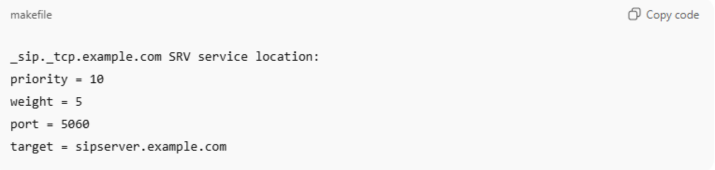
This output shows the server that will handle SIP connections, its priority, weight for load balancing, and the port number.
Using dig (Linux / macOS / Windows)
dig is a powerful tool for SRV record queries. It can provide verbose output and supports advanced filtering.
Command Example:

Key Points:
- Look at ANSWER SECTION for the SRV record
- Verify priority, weight, port, and target
- Use +short for concise output if needed
Using PowerShell (Windows)
For Windows environments, PowerShell provides the Resolve-DnsName cmdlet:
Command Example:

This command also supports filtering and is particularly useful for Microsoft 365 / Exchange SRV record checks.
Using Online SRV Lookup Tools
If command-line tools aren’t available, online tools like:
- MxToolbox SRV Lookup
- DNSChecker SRV Lookup
allow you to check DNS SRV records quickly from a browser. These tools are great for verifying SRV records across multiple global locations.
Understanding SRV Lookup Results

After performing a lookup, understanding the results is crucial:
| Field | Meaning |
| Priority | Lower value = preferred server |
| Weight | Relative load distribution among same-priority servers |
| Port | The service port number |
| Target | Hostname serving the requested service |
| TTL | Time the record is cached in DNS |
For example, a SRV record like:

means clients will first try the server sipserver.example.com on port 5060, and if multiple servers have the same priority, traffic is split according to the weight value.
Common SRV Lookup Issues & How to Fix Them
| Issue | Cause | Fix |
| SRV record not found | Record missing or query typo | Verify DNS SRV entry exists |
| Wrong priority | Misconfiguration | Adjust priority for correct failover |
| Weight misused | Load balancing not effective | Correct weight values |
| DNS propagation delay | Recent changes not propagated | Wait TTL or flush DNS cache |
| Client connection fails | Firewall/port blocked | Check network rules and open required ports |
Tips:
- Always validate SRV records after creating or editing
- Use nslookup, dig, or PowerShell for cross-platform verification
- Monitor TTL values for propagation delays
Practical Use Cases for SRV Records
- Microsoft 365 / Exchange Autodiscover: ” _autodiscover._tcp.example.com “ ensures email clients auto-configure settings.
- Microsoft Teams / Skype for Business: “ _sip._tls.domain.com “ directs clients to the correct SIP endpoint.
- VoIP / SIP servers: “ _sip._tcp.domain.com “ manages call routing efficiently.
- Minecraft / Gaming Servers: “ _minecraft._tcp.example.com “ lets clients connect without specifying ports manually.
Each use case requires a valid DNS SRV lookup to ensure smooth connectivity.
Best Practices for SRV Records

- Verify Records Regularly: Use CLI or online tools to confirm correctness.
- Maintain Consistency: Keep priority and weight values aligned with service design.
- Document Changes: Track modifications for troubleshooting.
- Check After Propagation: Flush local DNS caches after edits.
- Integrate with Monitoring Tools: Automate periodic DNS SRV lookup checks.
Command / Tool Specific Tips
- nslookup SRV record: Ideal for quick checks across platforms
- dig SRV record command: Recommended for Linux admins and advanced troubleshooting
- PowerShell DNS SRV lookup: PowerShell DNS SRV lookup is best for Windows enterprise environments
- Linux DNS SRV lookup: Use dig or host commands
- macOS DNS SRV lookup command: dig or nslookup works natively
Troubleshooting Keywords Covered
- DNS SRV lookup not working: verify service hostname and port
- SRV record not found: check domain and SRV entry
- Fix DNS SRV lookup error: adjust firewall, priority, weight
- Invalid SRV record lookup: validate TTL, target host
- Verify DNS SRV record: cross-check using CLI or online tools
FAQs
Why perform an SRV lookup?
To locate the correct service server and ensure connectivity for applications like Exchange, Teams, or VoIP.
How to interpret SRV record output?
Check priority, weight, port, and target to understand server routing and load balancing.
Which tools can I use for SRV lookup?
nslookup, dig, PowerShell, or online SRV lookup tools like MxToolbox.
What causes SRV lookup failures?
Missing records, misconfiguration, DNS propagation delays, or firewall/port restrictions.
How does SRV differ from other DNS records?
Unlike A or CNAME records that map a hostname to an IP, SRV records map services to servers including port and priority information.