DNS lookup is the first thing to check when a website does not load, emails fail, or a server behaves unpredictably.
Most people run a quick lookup tool, get an IP address, and stop there without understanding what the result actually means. That lack of clarity leads to wrong fixes, wasted time, and repeated DNS issues.
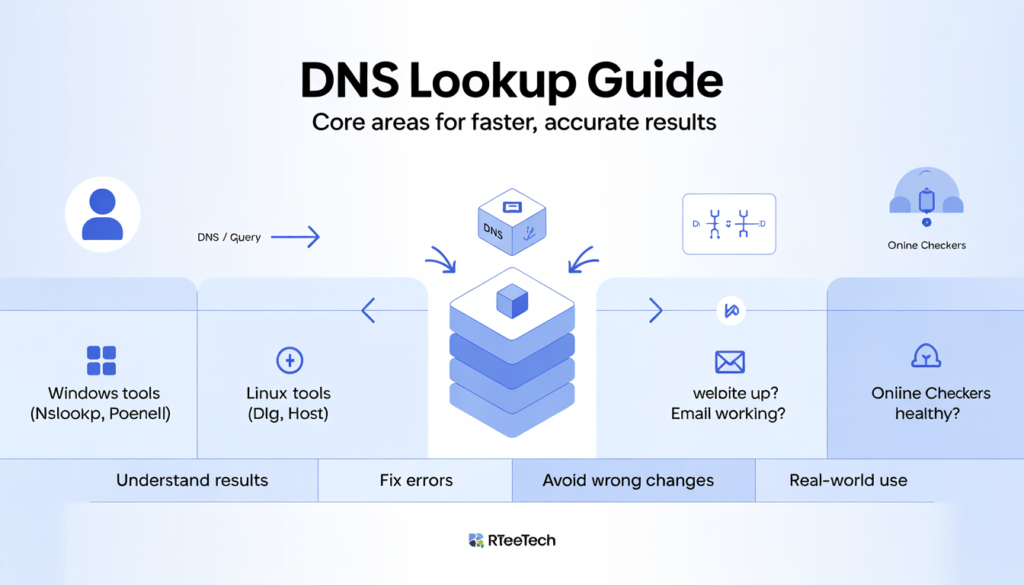
In this in-depth guide by Rteetech, we explain how DNS lookup really works, how to perform it on Windows and Linux, and how to fix common DNS lookup errors.
This article goes beyond tools and definitions to help you use DNS lookup confidently in real-world scenarios.
What Is DNS Lookup?
DNS lookup is the process of translating a domain name into an IP address so computers can communicate with each other. Humans remember names like google.com, but networks only understand numerical IP addresses.
When you type a website address into your browser, a DNS lookup quietly happens in the background to find the correct server.
There are two main types of DNS lookup:
- Forward DNS lookup: domain name to IP address
- Reverse DNS lookup: IP address to domain name
Both serve different purposes and are used in different situations.
How DNS Lookup Works Step by Step?
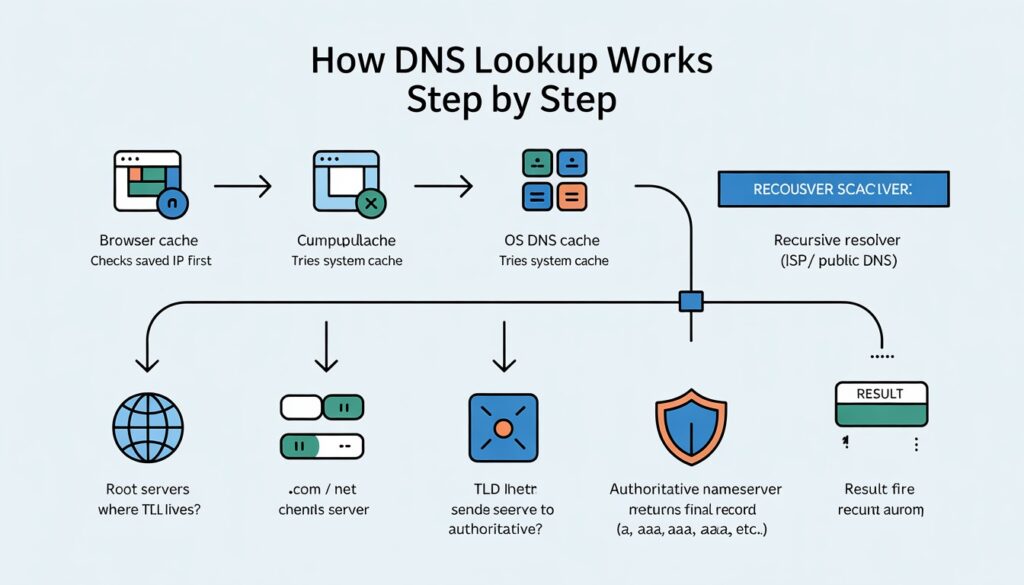
A DNS lookup is not a single request. It is a chain of queries that happens very quickly. First, your browser checks its local cache to see if it already knows the IP address.
If not, the request moves to the operating system cache. When the answer is still not found, the query is sent to a recursive DNS resolver, usually provided by your ISP or a public DNS service.
The resolver then follows a hierarchy:
- Root DNS servers tell where to find the TLD server
- TLD servers point to the authoritative name server
- Authoritative servers return the final DNS record
The result is cached based on TTL values so future lookups are faster.
If you want to visually understand this process, the dns lookup flow diagram explains each step clearly with labeled stages and real resolution paths.
Internal reference: how to find my dns server helps identify which resolver your system is actually using during this process.
Forward DNS Lookup vs Reverse DNS Lookup
Forward DNS lookup is what most people interact with. You provide a domain name and receive an IP address. For DNS administrators, understanding what is dns forward lookup zone helps explain how records are stored and managed inside DNS servers.
Reverse DNS lookup works in the opposite direction. You provide an IP address and attempt to find the domain name associated with it using PTR records.
Reverse lookup is commonly used for:
- Email server validation
- Log analysis
- Network troubleshooting
- Security verification
If you want to explore the technical side, the reverse dns lookup command article shows how PTR lookups work in real environments.
DNS Record Types You See in a DNS Lookup
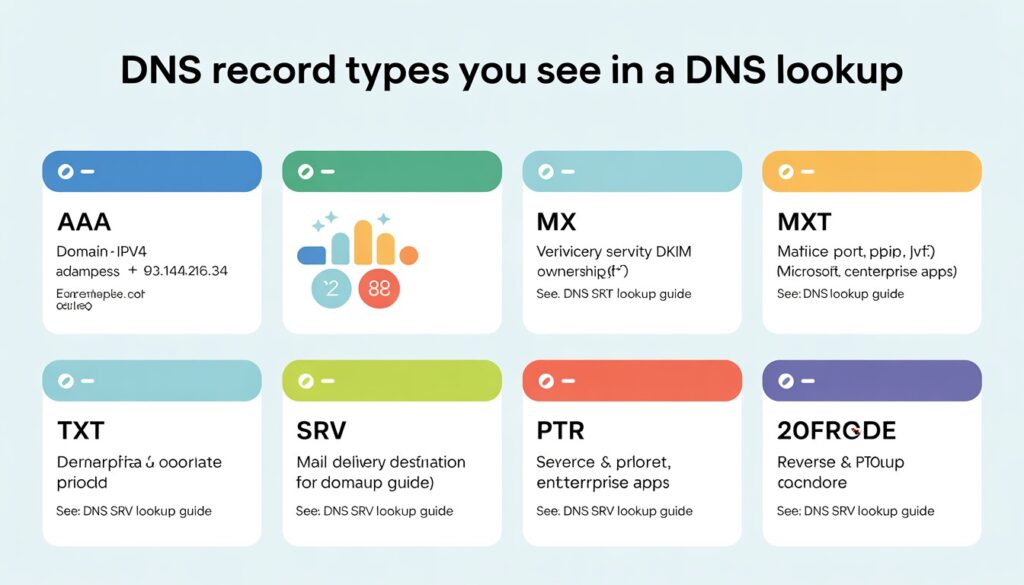
A DNS lookup can return many different record types depending on the query.
A records map a domain to an IPv4 address. AAAA records do the same for IPv6.
MX records define where email should be delivered. TXT records store verification and security information like SPF or DKIM.
If you frequently inspect text-based verification, the dns txt lookup guide explains how to read and validate TXT results correctly.
SRV records define services, ports, and priorities. They are common in VoIP, Microsoft services, and enterprise environments. The dns srv lookup article dives deeper into those use cases.
PTR records power reverse DNS lookup and are critical for mail servers and security systems.
How to Perform a DNS Lookup Using Different Methods?
DNS lookup can be done in several ways depending on how deep you want to go. Online DNS lookup tools are useful for quick checks. They show results from specific resolvers and are good for confirming public visibility.
Browser-based lookups rely on system DNS settings and cached responses, which sometimes hide propagation issues. Command-line tools provide the most accurate and detailed results.
For developers and automation tasks, the python dns lookup article demonstrates how to perform programmatic DNS queries using Python libraries.
DNS Lookup Commands on Windows, Linux, and macOS
On Windows systems, nslookup is the most commonly used command. It allows you to query specific DNS servers and inspect individual record types.
If you work in Windows automation or scripting environments, the powershell dns lookup guide explains how to integrate DNS queries into scripts.
Linux and macOS systems typically use dig and host. These tools provide more verbose output and advanced control over queries.
DNS Lookup Errors and How to Fix Them?
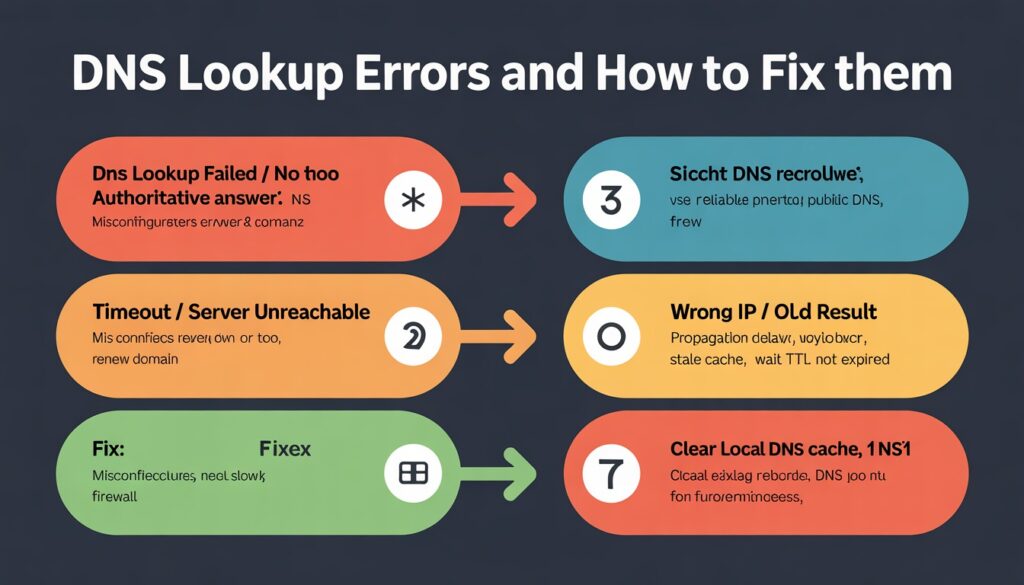
DNS lookup errors are one of the most common causes of connectivity problems. A DNS lookup failed error usually indicates that the resolver could not find an authoritative answer.
This can be caused by misconfigured records, expired domains, or incorrect name servers. Timeout errors often happen when DNS servers are unreachable or responding too slowly.
In many cases, switching resolvers or clearing local caches resolves the issue. Incorrect IP results usually point to propagation delays or stale caches.
Understanding TTL values helps explain why changes are not visible immediately. If you are seeing recurring failures, the dns lookup failed guide walks through fixes step by step.
Why DNS Lookup Can Be Slow and What You Can Do?
DNS lookup speed depends on several factors. Resolver distance, caching behavior, and DNS server performance all influence response time. Poor ISP resolvers are a common bottleneck.
Performance issues deserve special attention. Slow resolution impacts page load time and user experience. The how to fix slow dns lookup article focuses on optimizing resolver choice, caching, and DNS performance.
Switching to reliable public DNS providers, optimizing TTL values, and reducing dns lookups can significantly improve performance. This is where DNS lookup stops being a basic concept and becomes a performance tuning tool.
DNS Lookup vs DNS Propagation
DNS lookup happens instantly. DNS propagation does not. Propagation refers to how long DNS changes take to spread across global resolvers. Even if your authoritative server is updated, other resolvers may still cache old values.
Understanding this distinction prevents unnecessary troubleshooting when changes appear inconsistent.
DNS Lookup in Network Devices and Switches
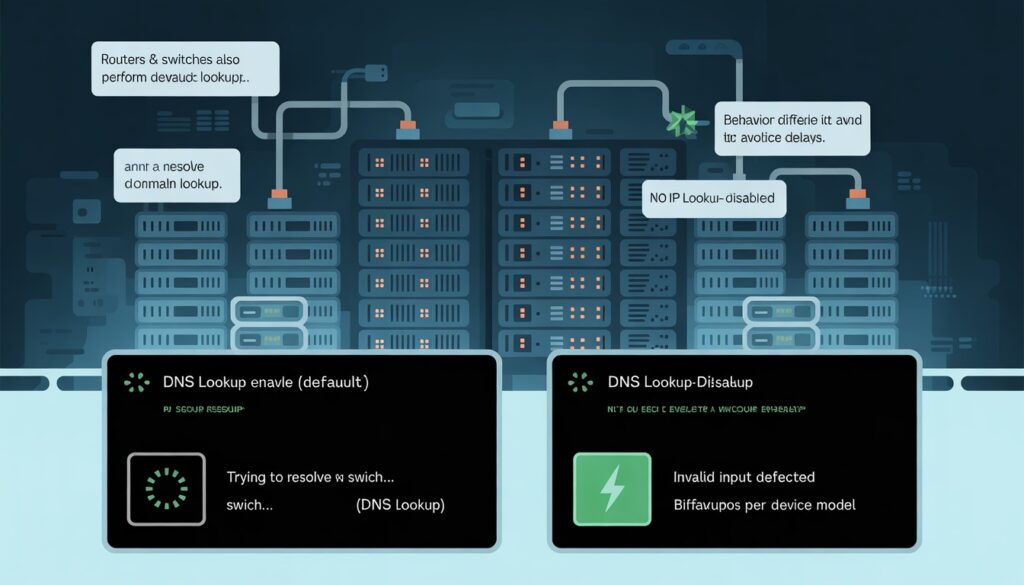
In enterprise environments, DNS lookup behavior affects routers and switches as well. Some administrators disable DNS lookup on network devices to prevent delays caused by unresolved hostnames.
Cisco devices, in particular, attempt DNS resolution by default. If you manage network infrastructure, disable dns lookup cisco explains when and why this configuration matters.
When Should You Use DNS Lookup in Real Situations?
DNS lookup is not just a learning topic. It is a practical diagnostic tool.
- Use it when a website is down to verify IP resolution.
- Use it when email delivery fails to validate MX and TXT records.
- Use it during migrations to confirm propagation status.
- Use it for security audits and reverse verification.
Once you understand DNS lookup deeply, it becomes one of the fastest ways to narrow down network problems. For switch-level configurations, how to disable dns lookup on switch provides device-specific guidance.
DNS Lookup Best Practices
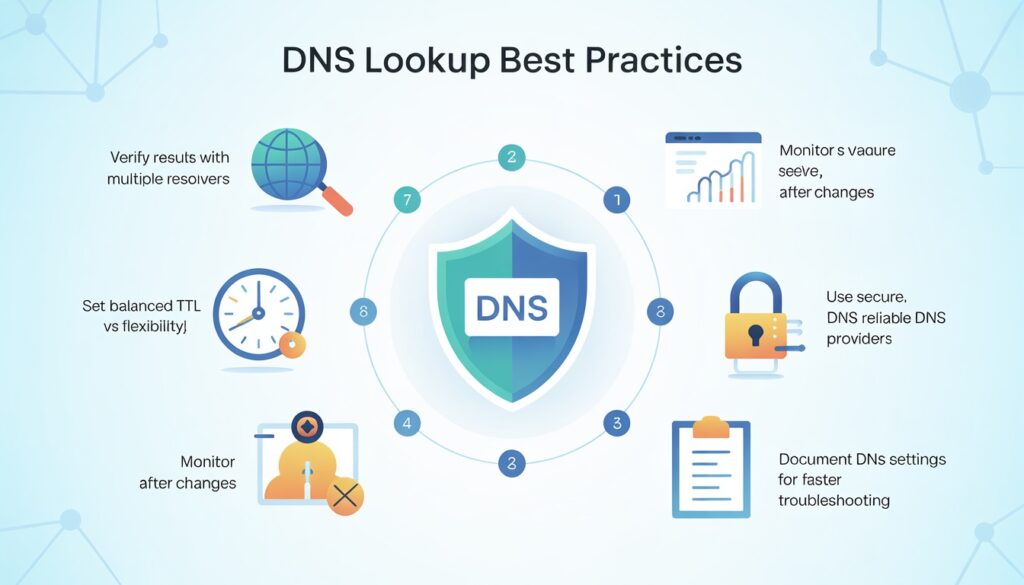
- Always verify results from multiple resolvers.
- Keep TTL values reasonable to balance speed and flexibility.
- Monitor DNS changes after updates.
- Use secure and reliable DNS providers.
- Document DNS configurations for troubleshooting.
Final Thoughts
DNS lookup is more than just a tool it’s a fundamental step in diagnosing network issues, verifying domain configurations, and ensuring smooth online operations.
By understanding how DNS lookup works, using commands like nslookup, and recognizing common errors, you can troubleshoot effectively and make informed decisions.
At Rteetech, we emphasize practical, real-world applications of DNS lookup so you can move beyond guesswork and fix problems with confidence.
Remember, consistent practice and leveraging the right techniques make DNS lookup not just a task, but a skill that improves your workflow and system reliability.
FAQs
How can I check global DNS propagation instantly?
Use tools like Cloudflare DNS Lookup, Google Public DNS, or WhatsMyDNS.net to verify record changes across multiple geo-locations. They confirm if your new A, CNAME, or MX records have updated globally essential after migration or DNS edits.
How does DNSSEC protect domain integrity?
DNSSEC (Domain Name System Security Extensions) digitally signs DNS records using DNSKEY and DS records, preventing spoofing and cache poisoning. Enabling it ensures that responses truly come from your domain’s authoritative nameserver, enhancing trust and authenticity.
Which DNS records improve email security and spam prevention?
Add SPF, DKIM, and DMARC records via TXT entries in your DNS zone. SPF defines authorized mail servers, DKIM adds cryptographic signatures, and DMARC combines both to stop spoofing, boosting email deliverability and sender reputation.
Why is IPv6 reverse DNS lookup important today?
IPv6 PTR records map IPs to hostnames, validating mail servers and network devices. Without it, IPv6-enabled systems may reject emails or fail spam checks. Use dig -x or PowerShell Resolve-DnsName commands to verify reverse mapping accuracy.
How to speed up slow DNS lookups?
Switch to faster resolvers like 1.1.1.1 (Cloudflare) or 8.8.8.8 (Google), reduce TTL (Time To Live) values for more responsive updates, and enable caching locally. Benchmark using DNSPerf or GRC’s DNS Benchmark to measure the fastest DNS providers for your network.
Can DNS lookups detect phishing or malicious domains?
Yes, by inspecting mismatched A, CNAME, and NS records using tools like VirusTotal, Cisco Talos, or DNSlytics, you can flag spoofed or fast-flux domains. Security audits that include DNS reputation checks reduce exposure to phishing and malware attacks.