
Ever noticed your Cisco router or switch freezing after a mistyped command? Most of the time, the culprit isn’t your device it’s the DNS lookup feature.
When enabled, any unknown command triggers the router to try resolving it as a domain name, causing frustrating delays that slow down your work.
At Rteetech, we show exactly how to disable DNS lookup Cisco devices safely, including step-by-step commands, line-level alternatives, and verification tips.
By following this guide, you can fix CLI freezes instantly, avoid common mistakes, and keep your routers and switches responsive whether in labs, Packet Tracer, or production environments.
Why Cisco CLI Freezes When DNS Lookup Is Enabled
When you enter an invalid command on a Cisco device, IOS does not immediately reject it. Instead, it assumes the text might be a hostname.
Once that assumption is made, the device tries to resolve the name using DNS. If no DNS server is reachable, the CLI waits until the lookup times out.
That is why you see the familiar translating domain server message and experience a noticeable delay.
This behavior is most visible in labs, Packet Tracer environments, and fresh routers where DNS is not configured at all.
How to Disable DNS Lookup Cisco Globally Using CLI?
The most reliable way to stop CLI delays is to disable DNS lookup globally. This is the method most engineers use during labs and practice sessions.
Disable DNS Lookup on Cisco Router or Switch
Enter global configuration mode and run the following command.

Once applied, the device stops attempting DNS resolution for unknown commands. Typos return immediate errors instead of freezing the CLI.
This method works on Cisco routers and switches running Cisco IOS. On older IOS versions, the command format remains the same.
What Changes After You Disable DNS Lookup Cisco IOS?
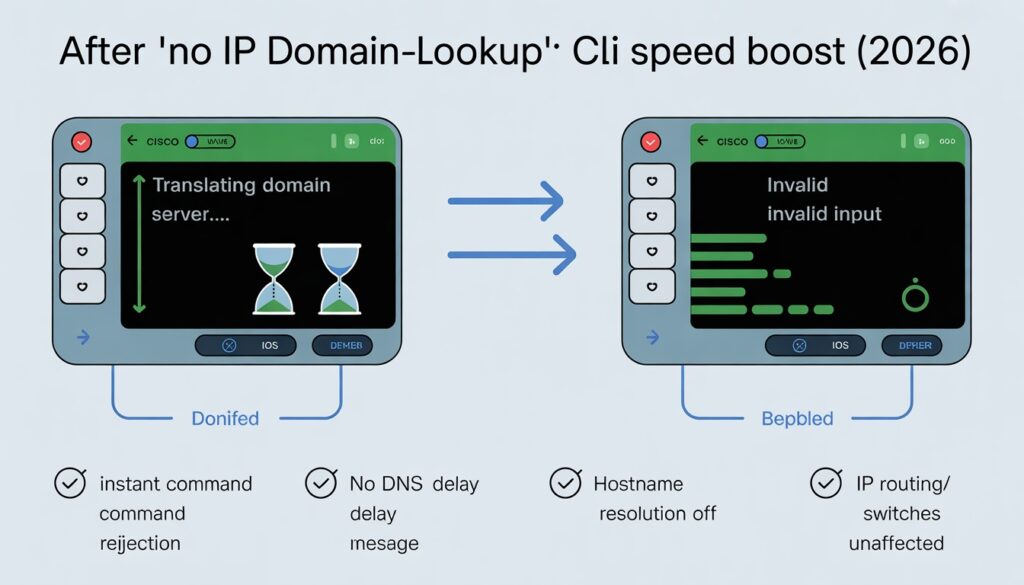
After disabling DNS lookup, the behavior of the CLI changes in predictable ways.
- Mistyped commands return instantly.
- The translating domain server message disappears.
- Hostname based commands no longer resolve automatically.
IP based operations remain unaffected. Routing, switching, and packet forwarding continue normally. This is why disabling DNS lookup is safe for labs and controlled environments.
Alternative Method to Stop DNS Lookup Without Fully Disabling It
In some environments, DNS is still needed for operational tasks. In those cases, disabling DNS globally may not be ideal.
Cisco provides a line level option that prevents mistyped commands from triggering DNS resolution while keeping DNS available for valid use cases.
Using Transport Preferred None on Console and VTY Lines
This method targets CLI behavior only.

For remote access lines.
This configuration stops the device from assuming unknown input is a connection target. It prevents CLI delays without disabling DNS globally.
Global Disable vs Line Level Method Compared
Choosing the right approach depends on how the device is used.
| Scenario | Recommended Option | Reason |
| CCNA labs | Global disable | No DNS needed |
| Packet Tracer | Global disable | Frequent typos |
| Production routers | Line level | DNS still required |
| Automation scripts | Avoid disable | Hostname resolution |
This comparison is often missing in competitor articles, yet it is where most wrong decisions happen.
Cisco DNS Lookup Delay and Timeout Explained
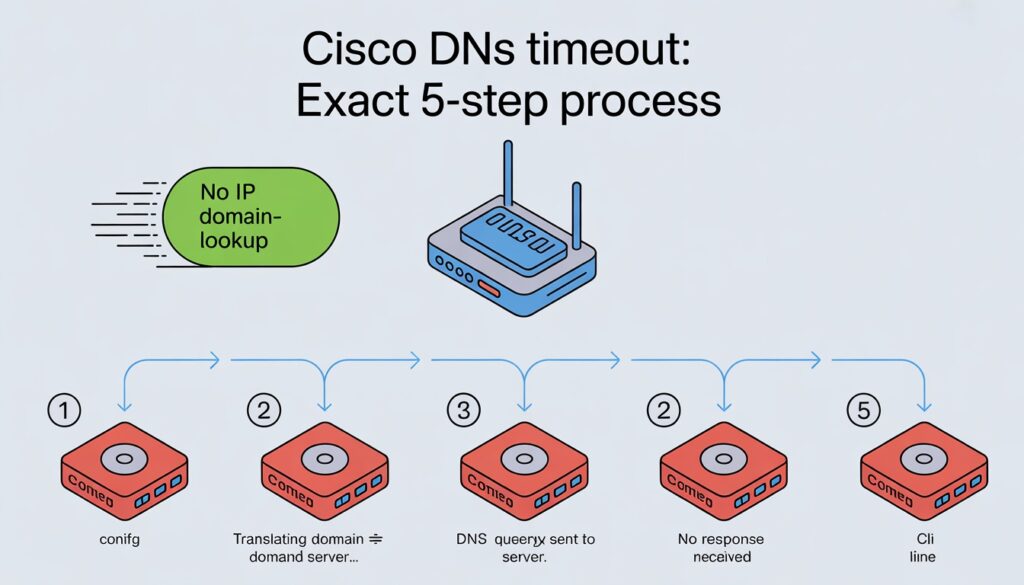
A Cisco DNS lookup timeout is not random. It follows a fixed pattern.
- Unknown command entered
- Hostname assumption triggered
- DNS query sent
- No response received
- CLI waits until timeout
Understanding this flow makes it clear why disabling DNS lookup solves the problem completely.
How to Verify DNS Lookup Status on Cisco Devices?
After configuration, verification is important. Use the following command to confirm settings.

If DNS lookup is disabled, the configuration will clearly reflect it. This step helps avoid confusion during troubleshooting.
How to Abort a Stuck DNS Lookup Instantly?
If the CLI is already frozen due to a DNS lookup attempt, there is a shortcut to regain control.
Press:

This aborts the current lookup attempt but does not prevent future delays. Use it as a temporary fix, not a solution.
Disable DNS Lookup Packet Tracer Environments
Packet Tracer users face this issue more than anyone else. DNS services are rarely configured in lab topologies.
Disabling DNS lookup in Packet Tracer improves response time and keeps practice sessions smooth.
The same no ip domain-lookup command applies. This single change makes Packet Tracer feel significantly faster during CLI work.
Common Mistakes Engineers Make With Cisco DNS Lookup
Even experienced engineers sometimes run into DNS lookup issues because of small assumptions. Here are the most common mistakes:
- Disabling DNS in production without planning: This can break hostname resolution for monitoring tools or automation scripts.
- Expecting hostname-based ping to work without DNS: Commands that rely on names instead of IPs will fail.
- Confusing DNS lookup with DNS server configuration: Disabling lookup does not remove DNS servers; misunderstanding this causes unnecessary troubleshooting.
- Forgetting to save configuration changes: Commands take effect temporarily; reboot or reload can undo your fixes if not saved.
ProTip: Avoiding these mistakes ensures smoother operation, prevents downtime, and keeps your Cisco devices responsive.
When You Should Not Disable DNS Lookup Cisco Devices?
Disabling DNS lookup is not always the right choice. Enterprise networks often rely on hostname based monitoring.
Automation platforms frequently resolve hostnames dynamically. Logging systems may reference DNS names.
In these scenarios, disabling DNS lookup globally can create hidden issues. Use the line level method instead.
No IP Domain Lookup Cisco Command Meaning Explained
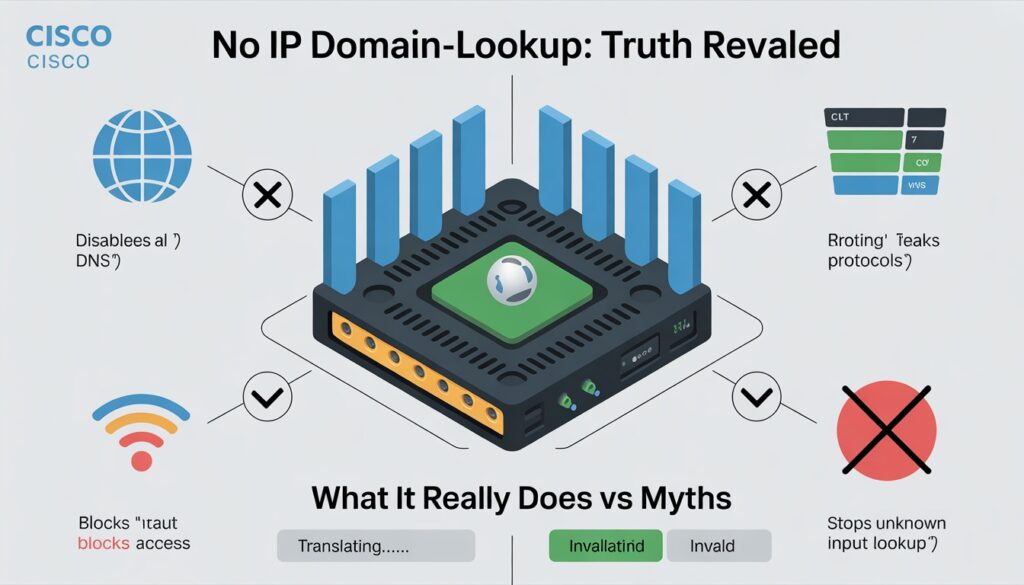
The no ip domain-lookup command simply stops the device from performing DNS resolution when it encounters unknown input.
- It does not disable DNS services entirely.
- It does not affect routing protocols.
- It does not block internet access.
Understanding this distinction removes most hesitation around using the command.
Why Cisco Tries to Resolve Hostnames by Default
Cisco IOS was designed for environments where DNS is available. The default behavior assumes name resolution is useful rather than harmful.
In modern labs and training environments, that assumption no longer holds. That is why disabling DNS lookup has become standard practice for engineers.
Best Practice Summary for Disabling DNS Lookup Cisco
- For labs and training devices, disable DNS lookup globally.
- Always verify configuration after changes.
- Avoid disabling DNS blindly without understanding dependencies.
- For production devices, prefer line level configuration.
Following these practices keeps devices responsive without creating future problems.
Final Thoughts
Disabling DNS lookup on Cisco devices is not a trick or workaround. It is a practical adjustment based on how modern engineers actually work.
When applied correctly, it removes frustration, speeds up CLI interaction, and improves overall workflow.
The key is understanding when to disable DNS lookup and how to do it without breaking valid use cases. This balance is what separates effective configuration from careless changes.
FAQs
How do I turn off DNS lookup on Cisco devices?
Use global configuration mode and run no ip domain-lookup. This stops CLI delays caused by hostname resolution.
What is the command on a Cisco device to turn off DNS?
The command is no ip domain-lookup. It applies to routers and switches running Cisco IOS.
Does disabling DNS lookup affect routing?
No. Routing and packet forwarding remain unaffected. Only hostname resolution is impacted.
Can I disable DNS lookup only for CLI typos?
Yes. Use transport preferred none on console and VTY lines to prevent CLI delays without disabling DNS globally.
Is it safe to disable DNS lookup in production?
It depends. In environments that rely on hostname resolution, use line level configuration instead of global disable.