Windows DNS lookup is an essential skill for anyone who wants to troubleshoot internet issues, verify domain settings, or manage email records on a Windows PC.
Many users rely on online tools or guesses, but the real power comes from using built-in Windows tools like nslookup in Command Prompt and Resolve-DnsName in PowerShell.
In this guide by Rteetech, you’ll learn step-by-step methods, record type checks, cache management, and troubleshooting tips that go beyond basic commands.
By the end, you will confidently perform Windows DNS lookups like a pro, understand the results, and fix common issues quickly from Rteetech.
Windows DNS Lookup: What It Actually Means on a Windows PC?
A Windows DNS lookup is the process of querying a DNS server to get information about a domain. Common queries include:
- IP address of a domain (A or AAAA record)
- MX records (email routing)
- TXT records (SPF, DKIM, verification)
- NS records (nameservers)
- SRV records (service-specific, e.g., Microsoft Teams, SIP)
Windows uses built-in tools like nslookup (Command Prompt) and Resolve-DnsName (PowerShell) to perform these lookups.
Results depend on the DNS resolver you are using, so two people can get different answers for the same query.
The 2 Best Tools for Windows DNS Lookup
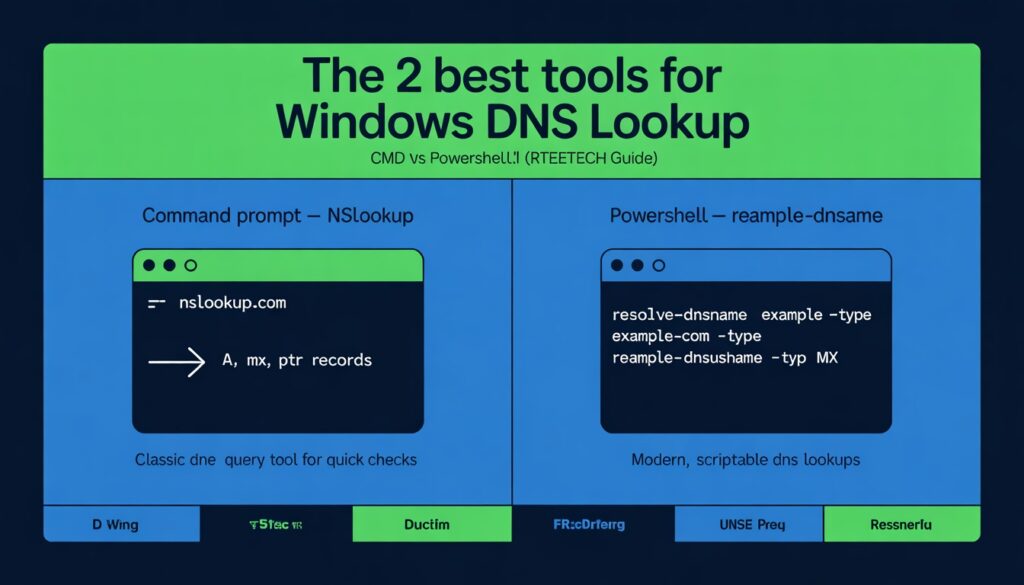
Most DNS lookups rely on two primary tools:
- Command Prompt using nslookup
- PowerShell using Resolve-DnsName
Other commands like ping, tracert, and ipconfig support troubleshooting but do not perform proper DNS record queries.
Windows DNS Lookup Using nslookup
Open nslookup
- Press Windows key
- Type cmd → Enter
Basic Lookups
Forward lookup (domain → IP):
“ nslookup example.com “
Reverse lookup (IP → domain):
“ nslookup 8.8.8.8 “
Reverse lookups only work if the IP owner configured a PTR record. Missing PTR does not indicate a problem unless for email verification.
Query a Specific DNS Server
“nslookup example.com 8.8.8.8
nslookup example.com 1.1.1.1”
Use this to determine if DNS issues are local (ISP) or global.
Query Specific Record Types
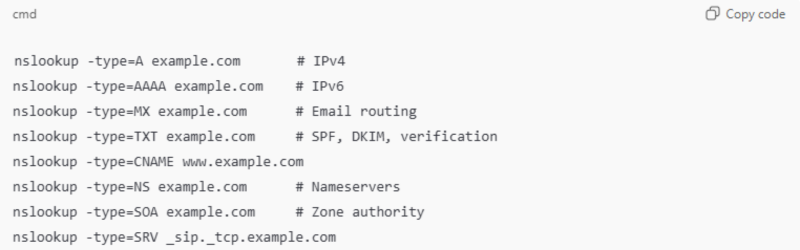
“nslookup -type=A example.com # IPv4 “
“ nslookup -type=AAAA example.com # IPv6 “
“ nslookup -type=MX example.com # Email routing “
“ nslookup -type=TXT example.com # SPF, DKIM, verification “
“ nslookup -type=CNAME www.example.com “
“ nslookup -type=NS example.com # Nameservers “
“ nslookup -type=SOA example.com # Zone authority “
“ nslookup -type=SRV _sip._tcp.example.com “
Windows DNS Lookup Using PowerShell (Resolve-DnsName)
Open PowerShell
- Press Windows key
- Type PowerShell DNS look up and Enter
Basic Lookup
“ Resolve-DnsName example.com ”
Provides structured output, easier for reading and scripting.
Lookup Specific Record Types
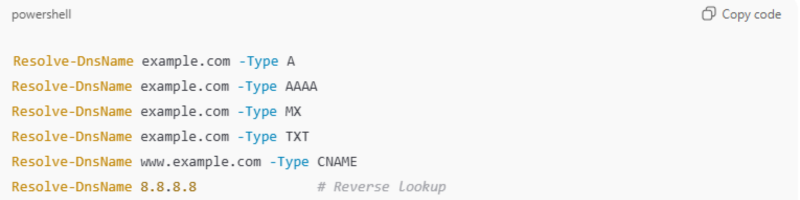
“ Resolve-DnsName example.com -Type A “
“ Resolve-DnsName example.com -Type AAAA “
“ Resolve-DnsName example.com -Type MX “
“ Resolve-DnsName example.com -Type TXT “
“ Resolve-DnsName www.example.com -Type CNAME “
“ Resolve-DnsName 8.8.8.8 # Reverse lookup “
“ Resolve-DnsName _sip._tcp.example.com -Type SRV “
Check Which DNS Server Windows is Using
Using ipconfig
“ ipconfig /all “
Look for DNS Servers for your active network adapter.
Using PowerShell
“ Get-DnsClientServerAddress “
Windows can have multiple DNS servers: ISP DNS, custom DNS (Google/Cloudflare), or VPN DNS.
DNS Cache in Windows
View Cached DNS Records
“ ipconfig /displaydns “
Clear DNS Cache
“ ipconfig /flushdns “
This fixes outdated results due to propagation or cached records.
Why Windows DNS Lookup Results Can Differ?
- ISP caching: Longer TTL, geo-based results
- CDN usage: Different IPs depending on location/resolver
- DNS over HTTPS (DoH): Browser may bypass Windows DNS
- Hosts file overrides: Check C:\Windows\System32\drivers\etc\hosts
Always compare results using multiple resolvers (8.8.8.8, 1.1.1.1) to confirm accuracy.
Troubleshooting Windows DNS Lookup Issues
- Test if DNS server responds:
“ nslookup example.com 8.8.8.8 “
- Restart DNS Client service:
“Restart-Service dnscache
ipconfig /flushdns ”
- Reset network stack (if bigger network issues):
“ netsh winsock reset “
- Check VPN overrides
- Check firewall/security software
- Check corporate split DNS
Windows DNS Lookup for Email and Microsoft Services
- MX records: Ensure mail points to correct provider
- TXT/SPF records: Email verification, spam prevention
- SRV records: Microsoft services, Active Directory, SIP
Example MX lookup:
“ nslookup -type=mx example.com “
Example SRV lookup:
“ nslookup -type=SRV _sip._tcp.example.com “
Windows vs Online DNS Tools
| Feature | Windows Tools | Online Tools |
| Local cache visibility | ✅ | ❌ |
| ISP DNS behavior | ✅ | ❌ |
| VPN/hosts overrides | ✅ | ❌ |
| Global propagation view | ❌ | ✅ |
Best approach: use both for troubleshooting and global checks.
Popular Public DNS Servers
- Google DNS: 8.8.8.8 & 8.8.4.4 → reliable, consistent results
- Quad9 DNS: 9.9.9.9 → security-focused, blocks malicious domains
Public DNS changes resolver only, not your DNS records.
Quick Comparison for Linux Users
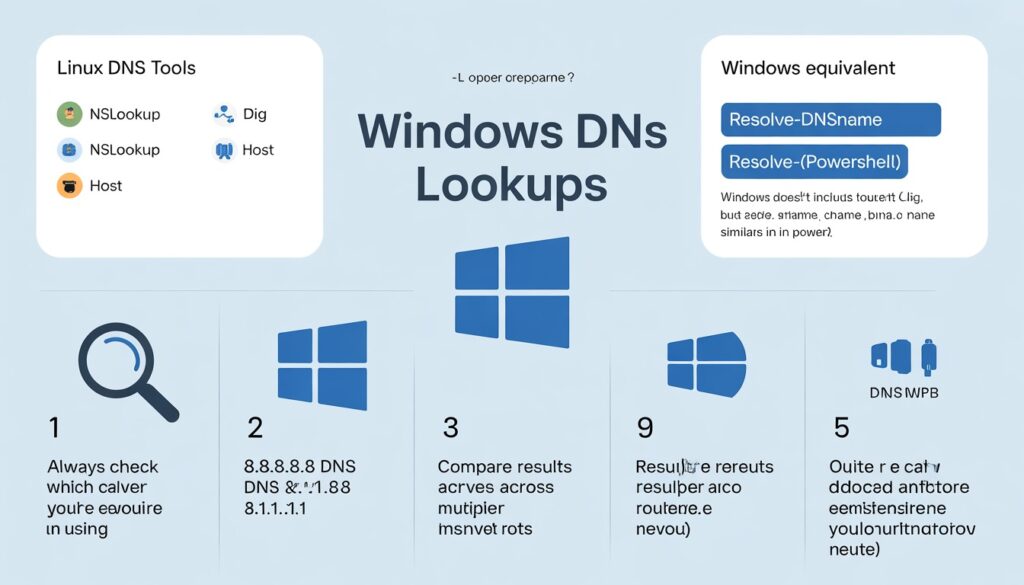
- Common Linux commands: dig, nslookup, host
- Windows lacks dig by default, but Resolve-DnsName is similar.
Best Practices for Windows DNS Lookup
- Always check which DNS server is being used
- Compare results using multiple resolvers (8.8.8.8 & 1.1.1.1)
- Flush DNS cache before testing changes
- Understand CDNs & geo-DNS effects
- Use PowerShell for cleaner output
Conclusion
Mastering Windows DNS lookup gives you the ability to troubleshoot network problems, verify domain records, and prevent email delivery issues.
Using nslookup, Resolve-DnsName, and DNS cache commands, you can pinpoint issues, compare results across DNS servers, and understand exactly what your Windows PC is seeing.
At Rteetech, our goal is to help you go beyond simple tool outputs and truly understand how DNS works in Windows.
Whether you are checking A, MX, TXT, CNAME, or SRV records, this guide equips you with practical steps to diagnose, fix, and confirm DNS results reliably.
FAQs
What does DNS 8.8.8.8 and 8.8.4.4 do?
These are Google Public DNS servers that resolve domain names instead of your ISP DNS, providing faster and consistent results globally.
Is 9.9.9.9 DNS safe?
Yes, Quad9 (9.9.9.9) is secure, blocks known malicious domains, and is privacy-focused.
What is the equivalent of nslookup in Windows?
PowerShell’s Resolve-DnsName is the modern equivalent, offering structured output and advanced record queries.
How to do nslookup in CMD?
Open Command Prompt, type nslookup example.com, and optionally use -type for MX, TXT, NS, or other record types.
How to check which DNS server Windows is using?
Run ipconfig /all in CMD or Get-DnsClientServerAddress in PowerShell to see all active DNS servers.
How to clear DNS cache in Windows?
Use ipconfig /flushdns to remove cached records and get the most updated DNS responses.
Why do Windows DNS lookup results differ?
Results may vary due to ISP caching, geo-based DNS, CDNs, DNS over HTTPS, or hosts file overrides.
Can Windows DNS lookup verify email records?
Yes, using MX and TXT queries, you can confirm mail routing and SPF/DKIM verification for email deliverability.
How to perform a reverse DNS lookup in Windows?
Use nslookup <IP> or Resolve-DnsName <IP>; it works only if a PTR record exists for that IP.
Can PowerShell Resolve-DnsName replace online tools?
It provides local visibility, structured output, and supports multiple DNS servers, but global propagation checks may still require online tools.