
How to disable DNS lookup on switch is a common problem faced by network administrators when the switch CLI suddenly becomes slow or unresponsive after a small typing mistake.
Instead of showing an error, the switch starts trying to resolve random words through DNS, wasting time and breaking workflow. This behavior is default on many switches running Cisco IOS, especially when DNS servers are not find.
At Rteetech, we see this issue in labs, production networks, and CCNA-level environments where fast CLI response matters. The good news is that disabling DNS lookup on a switch is quick, safe in most cases, and instantly improves command-line performance.
This guide explains the exact commands, real behavior, verification steps, and when disabling DNS lookup actually makes sense.
What Is DNS Lookup on a Switch?
DNS lookup on a switch refers to the behavior where the device attempts to resolve unknown words typed in the CLI as hostnames using DNS.
When the switch cannot recognize a command, it assumes you might be trying to reach a remote host and sends a DNS query.
This feature exists to support hostname-based commands such as pinging or connecting to devices using names instead of IP addresses. On paper, that sounds useful. In practice, it often causes delays.
If no DNS server is configured, or if the DNS server is unreachable, the switch waits for the lookup to fail before returning control to the CLI. That pause is what most administrators find frustrating.
Common environments where this happens include lab setups, newly deployed switches, and production networks where DNS is intentionally restricted on infrastructure devices.
Why Disable DNS Lookup on a Switch?
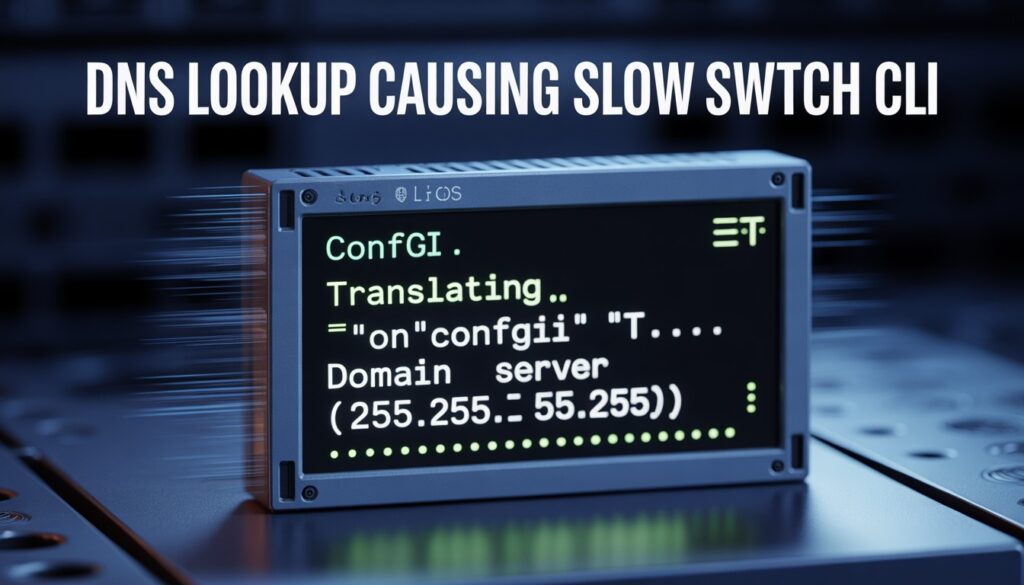
The main reason to disable DNS lookup on a switch is speed and control. When DNS lookup is enabled and you mistype a command, the switch sends a DNS request.
During that time, the CLI becomes unresponsive. In some cases, the delay can last several seconds, especially if the DNS timeout is long.
Disabling DNS lookup removes this behavior entirely. The switch immediately returns an error for unknown commands instead of attempting name resolution.
Other practical reasons include:
- No DNS servers configured on the switch
- CLI lag during configuration sessions
- Lab or training environments where DNS is unnecessary
- Reducing unnecessary network traffic
- Avoiding confusion caused by DNS translation messages
This change does not affect switching or routing performance. It only changes how the CLI handles unknown input.
How to Disable DNS Lookup on Switch (Step by Step)
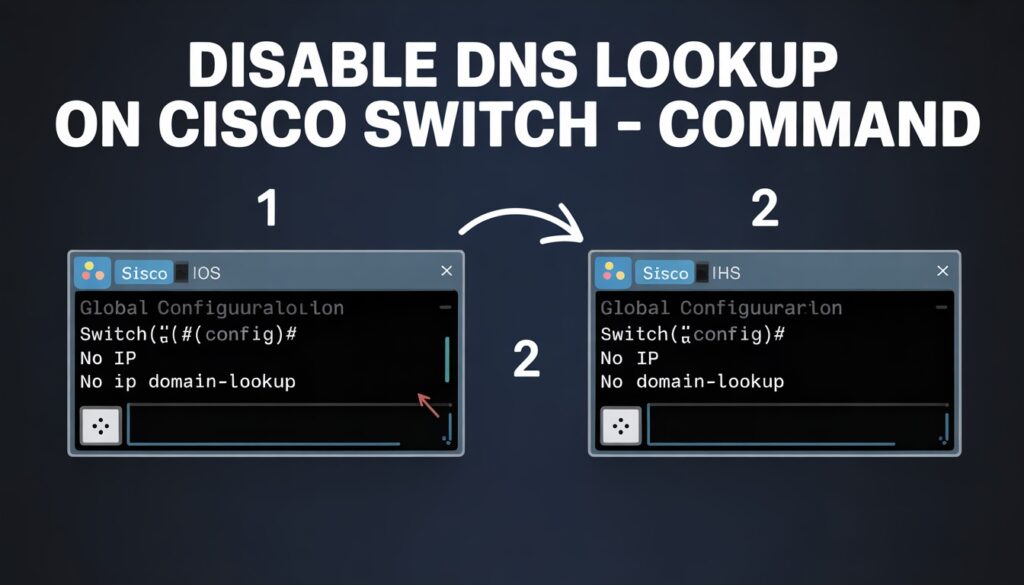
Disabling DNS lookup on a switch requires access to the global configuration mode. The process is identical on most Cisco switches and routers running IOS or IOS XE.
Step 1: Enter Privileged EXEC Mode
Access the switch CLI and enter privileged mode.

This gives you access to configuration commands.
Step 2: Enter Global Configuration Mode
From privileged mode, move into global configuration.

At this stage, you can change system-wide settings.
Step 3: Disable DNS Lookup
This is the key command.

This command tells the switch to stop attempting DNS resolution for unknown CLI input.
Once applied, the change takes effect immediately.
Step 4: Exit Configuration Mode
Exit global configuration mode.

Step 5: Save the Configuration
If you want the change to persist after a reload, save the configuration.

Failing to save will cause DNS lookup to re-enable after a reboot.
How to Verify DNS Lookup Is Disabled?
Verification is simple and important.
Run the following command:

If DNS lookup is disabled, you will see:

Another practical test is to type a random word at the CLI. If DNS lookup is disabled, the switch immediately returns an error instead of attempting translation.
What Happens After Disabling DNS Lookup?
Once DNS lookup is disabled, the switch no longer attempts to resolve hostnames entered incorrectly. CLI responsiveness improves immediately, especially during long configuration sessions.
However, there is an important side effect.
You will no longer be able to use hostnames in commands such as ping or traceroute unless DNS lookup is re-enabled. Only IP-based commands will work.
For many administrators, this tradeoff is acceptable. For others, it is not. That is where alternative approaches come in.
Alternative Methods to Manage DNS Lookup Behavior
Disabling DNS lookup entirely is not the only option. In some environments, you may want to keep hostname resolution but avoid CLI delays.
Using Transport Preferred None
One alternative is adjusting transport behavior on console or VTY lines. This method reduces the likelihood of DNS lookups without disabling DNS globally.
This approach is more advanced and is typically used when DNS resolution is still required for certain operations.
Configuring DNS Servers Properly
Another option is to configure valid DNS servers on the switch.

When DNS servers are reachable, lookup delays are shorter and less noticeable. This does not eliminate the behavior but makes it less disruptive.
When You Should Not Disable DNS Lookup?
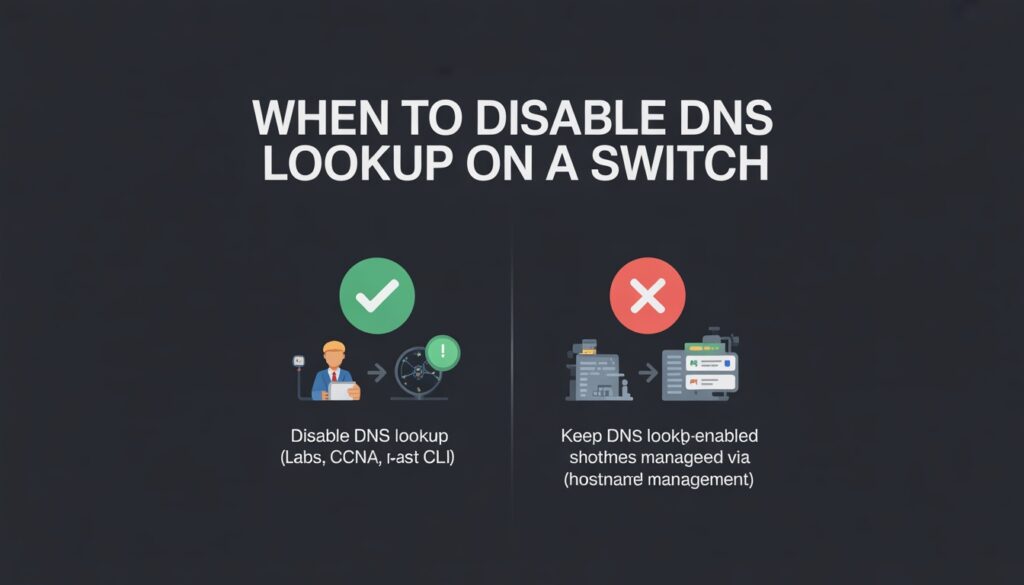
Disabling DNS lookup is not always the right decision. Avoid disabling it if:
- You rely on hostname-based management
- The switch regularly resolves device names
- DNS is part of your network monitoring workflow
- You use scripts or automation that depend on DNS
In enterprise environments, DNS lookup may be intentionally enabled to support standardized naming and troubleshooting practices.
The key is understanding your use case before applying the command blindly.
Common Troubleshooting Issues
Sometimes administrators believe DNS lookup is disabled, but CLI delays still occur. Common causes include:
- Configuration not saved
- Multiple configuration contexts on stacked switches
- Confusion between DNS lookup and Meraki DNS alerts
Always verify the running configuration and test behavior directly in the CLI.
Best Practices for Production Networks
In production environments, consistency matters. If you disable DNS lookup on one switch, consider applying the same standard across similar devices. Document the decision and ensure your team understands the tradeoffs.
In lab environments, disabling DNS lookup is almost always recommended due to speed and simplicity.
Final Thoughts
Learning how to disable DNS lookup on switch devices is one of those small configuration changes that makes a big difference in daily work.
It improves CLI responsiveness, reduces frustration, and gives you predictable behavior during configuration sessions.
The key is understanding why the feature exists, when to disable it, and when to leave it enabled.
When applied thoughtfully, this simple command becomes a powerful quality-of-life improvement for network administrators.
Frequently Asked Questions
How do I re-enable DNS lookup on a switch
To re-enable DNS lookup, enter global configuration mode and use:
“ ip domain-lookup “
Save the configuration afterward.
Does disabling DNS lookup affect network traffic?
No. Disabling DNS lookup only affects CLI behavior. It does not impact switching, routing, or packet forwarding.
Why does my switch freeze when I type a wrong command?
This happens because the switch attempts DNS resolution for unknown input. Disabling DNS lookup removes this delay.
Is disabling DNS lookup safe in production?
It is safe if your environment does not depend on hostname resolution. Always evaluate operational requirements first.
What is the difference between DNS lookup and DNS configuration?
DNS lookup controls CLI behavior. DNS configuration defines which servers the switch can use for name resolution. They are related but not the same.