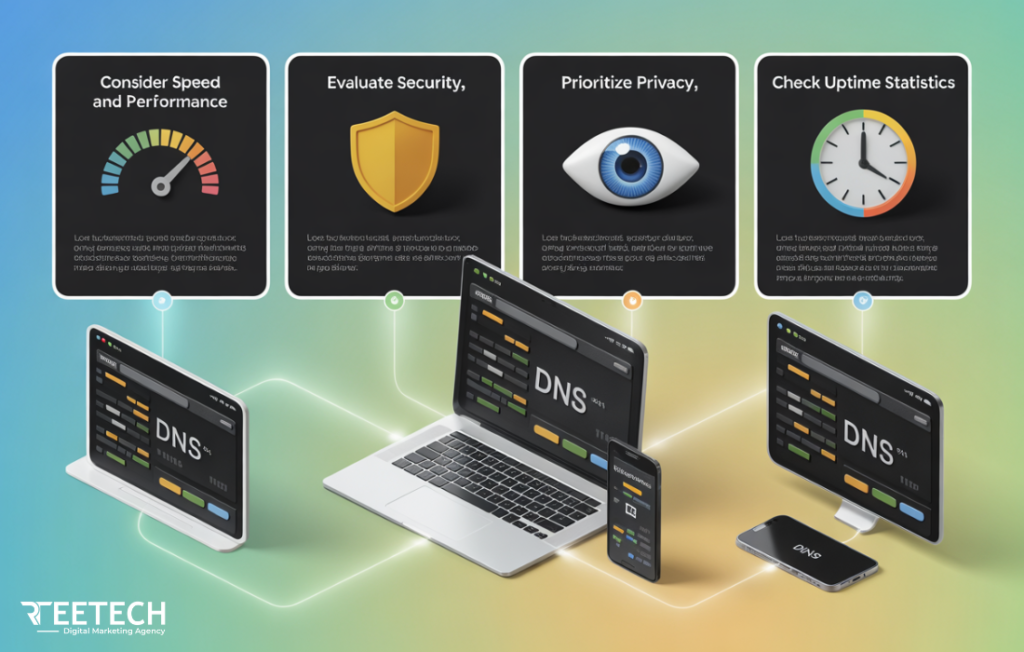
Ever wondered, “How to find my DNS server?” Whether you’re on Windows, Mac, Linux, Android, iPhone, or your router, knowing your DNS server is key to fast and reliable internet.
It not only helps resolve website addresses quickly but also allows you to troubleshoot connection issues and optimize network performance.
In this complete guide, we’ll show step-by-step methods for every device, including commands, verification tools, and practical tips to find your active DNS server.
Along the way, we’ll also explain why your DNS might look different than expected and how to check or change it safely. For more advanced network insights and tutorials, you can also check Rteetech’s guides.
What Does “My DNS Server” Mean?
Before diving into the methods, it’s important to understand what a DNS server is and why it matters. Your DNS server translates website names into IP addresses, allowing your devices to connect online. Knowing your DNS server helps troubleshoot connection issues and optimize speed.
Text:
In most cases, your DNS server is provided by your ISP or router, but you can also use custom DNS servers like Google (8.8.8.8) or Cloudflare (1.1.1.1) for improved speed and privacy.
Understanding this distinction ensures you know whether the server you find is actively resolving queries or just configured.
How to Find My DNS Server on Windows?
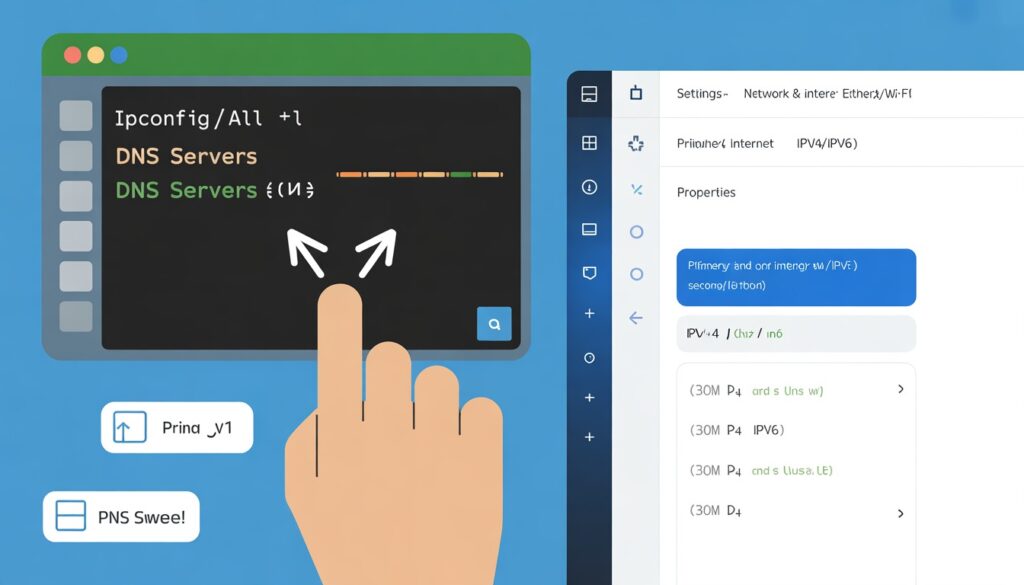
Windows users search this the most. Here, we’ll cover Command Prompt and Settings methods to quickly find your primary and secondary DNS addresses.
Text:
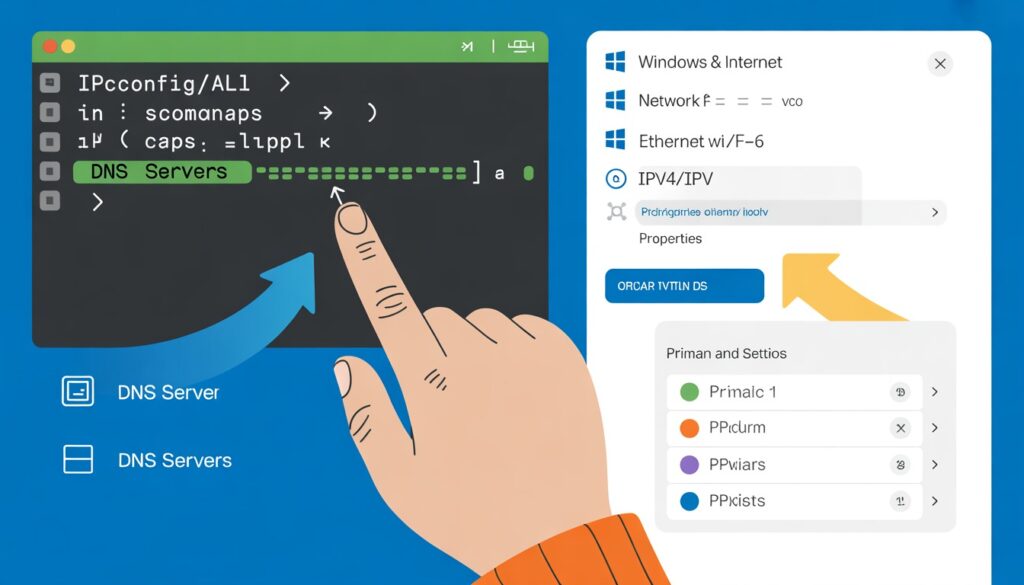
Open Command Prompt and run “ ipconfig /all “. Look for the DNS Servers entry under your active network connection. This shows both primary and secondary DNS servers.
If multiple addresses appear, the top one is used first. For Windows 10, you can also check DNS in Network & Internet Settings → Ethernet/Wi-Fi → Properties → IPv4/IPv6.
How to Find My DNS Server on Mac?
On Macs, DNS settings may show differently from what’s actually being used. We’ll show both GUI and terminal methods to ensure accuracy.
Text:
Go to System Settings → Network → Active Connection → DNS to view addresses. For terminal users, “ scutil –dns “ or “ dig “ commands provide the actual resolver being used. This is useful when macOS caches or overrides DNS automatically.
How to Find My DNS Server on Linux?
Linux systems often have multiple resolvers and network managers. Here, we explain commands and tools to see the configured vs real DNS resolver.
Text:
Use “ cat /etc/resolv.conf “ to see configured DNS servers. If NetworkManager or systemd-resolved manages your network, try “ nmcli dev show | grep DNS “ or “ resolvectl “ to verify the actual resolver. This ensures accuracy when troubleshooting or changing DNS.
How to Find My DNS Server on Android?
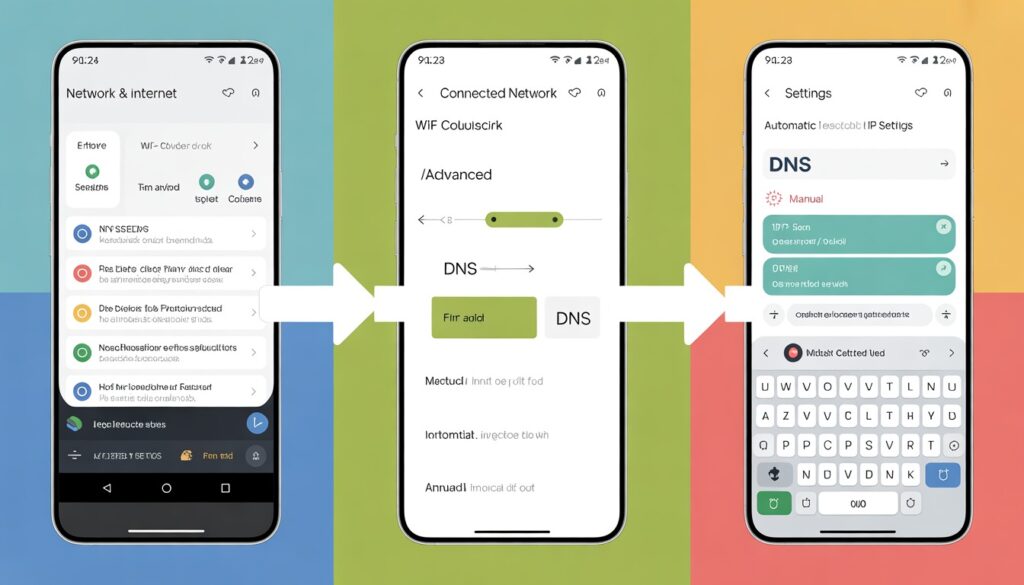
Android devices usually get DNS automatically from Wi-Fi or mobile networks. This section guides users through step-by-step verification, whether the DNS is automatic or custom.
Text:
Navigate to Settings → Network & Internet → Wi-Fi → Connected Network → Advanced → IP Settings. The DNS field shows the addresses. Automatic means the router or ISP provides it, while manual indicates custom DNS.
How to Find My DNS Server on iPhone (iOS)?
iOS DNS can be automatic, manual, or overridden by VPN/Private Relay. We’ll show clear steps to check and verify the actual DNS server in use.
Text:
Go to Settings → Wi-Fi → Connected Network → Configure DNS. Here you see automatic or manual entries. Manual allows Google, Cloudflare, or custom DNS. VPN or Private Relay may override DNS, so verify actual resolving server using online lookup tools.
How to Find My DNS Server on Your Router (Most Accurate Method)?
A router’s DNS serves all connected devices, making it the authoritative source. We explain how to log in and find the exact DNS server.
Text:
Log in to your router (commonly at “ 192.168.0.1 or 192.168.1.1 “). Navigate to Internet/WAN settings and look for DNS Server. This is the authoritative source for your network. Changing it affects all devices. Tools like router admin panel or IP address lookup can confirm the active DNS.
Why Your DNS Server May Look Different Than Expected?
Sometimes users see multiple or unusual DNS addresses. This section explains IPv6, VPNs, DHCP, and caching issues that can cause confusion. If you’re unsure whether a DNS IP truly matches your domain, check it using the Reverse DNS Lookup Command guide.
Text:
Differences can be due to IPv6 addresses, VPNs, local caching, or DHCP-assigned DNS. Understanding resolver vs configured DNS is essential to troubleshoot connectivity issues and avoid errors when changing settings.
How to Verify Which DNS Server Is Actually Being Used?
Just seeing a DNS address doesn’t mean it’s resolving queries. Here, we show how to use nslookup and dig to confirm the real DNS server in action. You can also use PowerShell DNS Lookup to verify the server resolving your queries.
Text:
Use “ nslookup “ or “ dig “ to check which server resolves domains in real-time. For example, “ nslookup google.com “ returns the IP address and the server that answered. This is crucial if multiple DNS servers are listed or VPN is active.
ISP DNS vs Public DNS (Should You Change It?)
After finding your DNS, users often wonder if changing it is worth it. We discuss the pros and cons of ISP vs public DNS like Google or Cloudflare, with tips on when and how to change it safely.
Text:
ISP DNS is default but may be slower or less private. Public DNS like Google (8.8.8.8) or Cloudflare (1.1.1.1) improves speed, reliability, and privacy. Changing router or device-level DNS affects performance, so always test with speed tools or ping checks.
Final Thoughts
Finding your DNS server is simple once you know where to look. Windows, Mac, Linux, Android, iPhone, and router methods ensure you identify both configured and actual resolvers.
Use verification tools like “ nslookup “ or “ dig “, and consider public DNS for better performance. With this guide, you now control your network’s DNS settings confidently.
FAQs
How do I find my DNS server quickly?
Check your device’s network settings or run “ ipconfig /all “ on Windows for immediate results.
Why do I see multiple DNS servers?
Devices often list primary and secondary DNS for redundancy; the top one is used first.
Is my DNS coming from my ISP or router?
Automatic settings usually come from your router/ISP. Manual settings override this.
Does VPN change my DNS server?
Yes, VPN can route DNS queries through its own servers, hiding your actual DNS.
Is it safe to change my DNS server?
Yes, using reputable DNS servers improves speed and privacy. Avoid unknown servers to prevent risks.