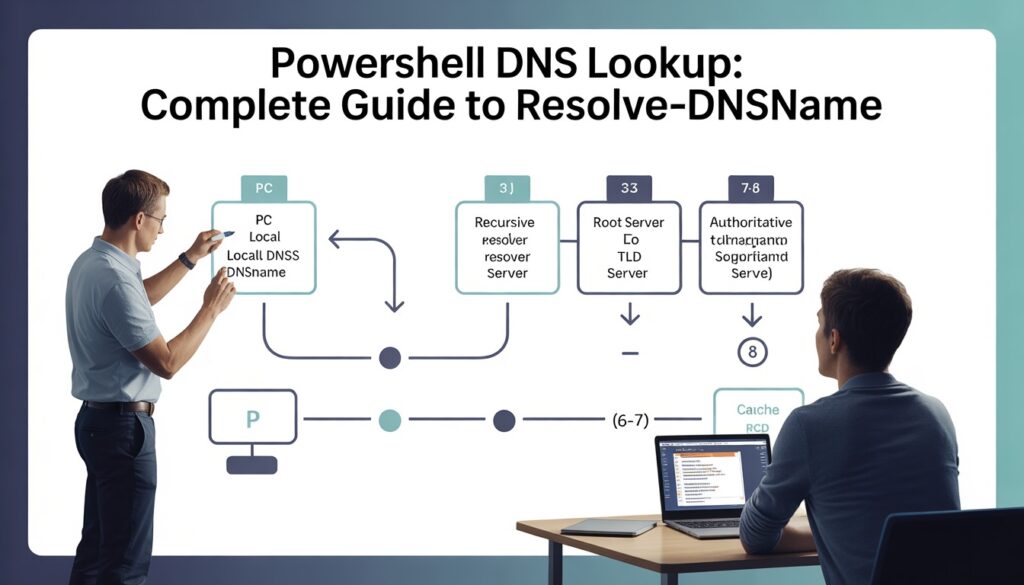
PowerShell DNS Lookup is one of the fastest ways to troubleshoot DNS issues, verify records, and confirm whether a domain is resolving correctly. Instead of relying only on legacy tools like nslookup, PowerShell provides a modern and automation-friendly cmdlet: Resolve-DnsName.
With it, you can query A/AAAA, MX, TXT, CNAME, NS, and run PTR reverse DNS lookups with clean, structured output. This makes it perfect for sysadmins who need quick answers and reliable scripting.
In this guide, you’ll learn the exact commands for common DNS lookups, how to test resolution, troubleshoot failures, and automate bulk DNS checks for real-world network tasks.
Why PowerShell is the Modern DNS Lookup Tool?
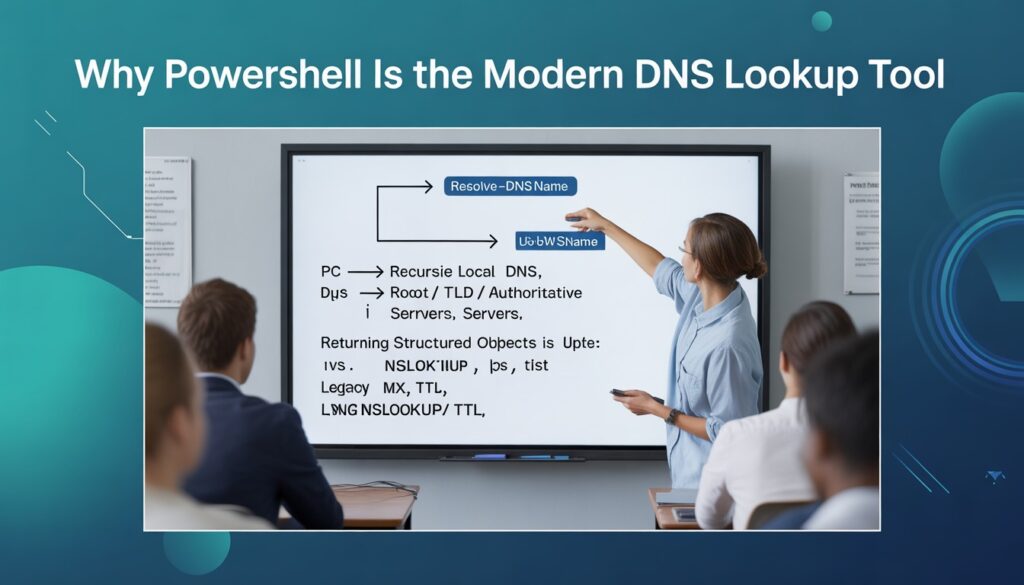
PowerShell has transformed DNS lookups with the Resolve-DnsName cmdlet. Unlike legacy tools like nslookup or dig, it provides results as objects you can easily manipulate, export, and automate.
Whether you’re troubleshooting network issues, verifying mail servers, or scripting batch queries, this cmdlet makes DNS resolution smarter and faster.
With PowerShell, the days of parsing text-based outputs are over. For instance, running a simple lookup for Google returns structured objects, letting you directly extract IP addresses, record types, or TTL values for further processing. This makes automation seamless and reporting reliable.
How DNS Really Works: The Records You Need to Know
DNS isn’t just about turning domain names into IP addresses. Each record type has a practical role, and understanding them ensures your lookups deliver actionable results.
- A (IPv4) / AAAA (IPv6): Maps hostnames to IP addresses. Essential for connectivity checks.
- MX (Mail Exchange): Determines where emails for a domain are routed. Vital for troubleshooting mail delivery.
- CNAME (Canonical Name): Aliases one domain to another. Useful for managing redirects and subdomains.
- TXT: Holds text data such as SPF, DKIM, or verification info for services.
- NS (Name Servers): Identifies authoritative servers for the domain. Helps confirm proper DNS delegation.
- PTR: Reverse DNS records linking IPs to hostnames. Critical for mail servers and security audits.
- SOA / SRV / ANY: Used in zone configuration and advanced queries.
Example: A misconfigured MX record can make emails bounce even if the domain resolves correctly. Knowing which record to query saves time and prevents errors.
Quick DNS Lookup in PowerShell: The Essentials
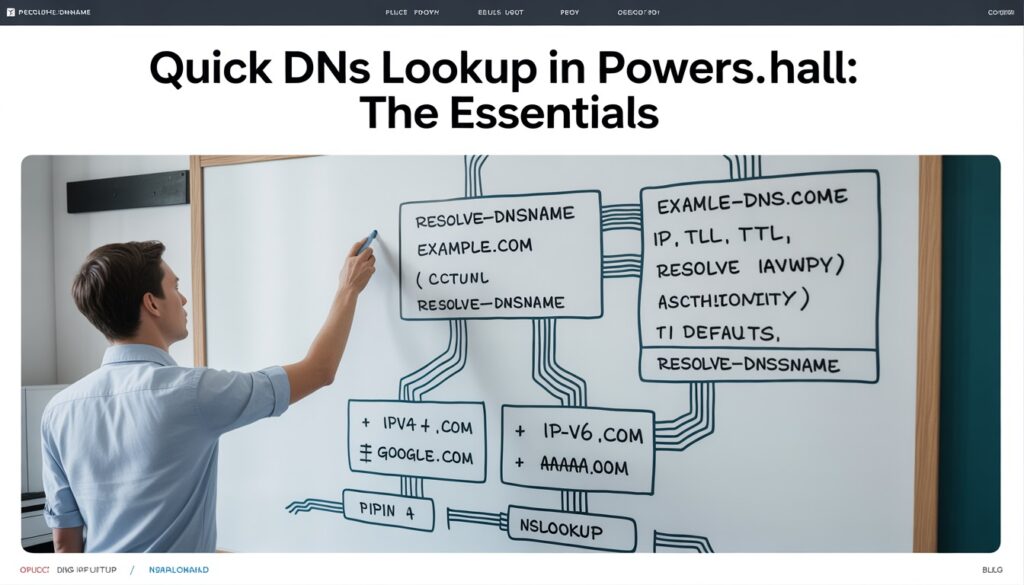
The simplest way to run a PowerShell DNS lookup is with Resolve-DnsName.
“Resolve-DnsName -Name “ex” This command queries your system’s default DNS servers and returns structured information, including IP addresses, record type, TTL, and the section of the response (Answer, Authority, Additional).
Unlike nslookup, you get object-based results that you can pipe into other cmdlets for further analysis.
- Query multiple domains at once:
“example.com”,”google.com” | Resolve-DnsName”
- Quick tip: By default, both IPv4 (A) and IPv6 (AAAA) records are returned, so you immediately see all active addresses.
PowerShell DNS Lookup Command Cheat Sheet (Quick Reference)
If you just need the exact command without reading the full guide, use this quick reference list.
Basic Forward Lookup
" Resolve-DnsName -Name example.com "Query Specific Record Type
" Resolve-DnsName -Name example.com -Type A "
" Resolve-DnsName -Name example.com -Type MX "
" Resolve-DnsName -Name example.com -Type TXT "
" Resolve-DnsName -Name example.com -Type NS "
Reverse DNS Lookup (IP to Hostname)
" Resolve-DnsName -Name 8.8.8.8 -Type PTR "Query a Specific DNS Server
" Resolve-DnsName -Name example.com -Server 8.8.8.8 "Force Pure DNS Query (No Hosts File / No LLMNR)
" Resolve-DnsName -Name example.com -DnsOnly -NoHostsFile "Export Results to CSV
" Resolve-DnsName -Name example.com | Export-Csv dns-results.csv -NoTypeInformation "

This cheat sheet covers 90% of real-world PowerShell DNS lookup scenarios used by system administrators and IT professionals.
All PowerShell DNS Commands
After mastering the basics of Resolve-DnsName, it’s important to know the full set of PowerShell commands that help you query and troubleshoot DNS efficiently.
These commands cover everything from simple lookups to advanced checks and automation, ensuring you have the right tool for every scenario.
Basic Queries
Use it to query specific record types with structured output:
" Resolve-DnsName -Name "example.com" -Type A "
" Resolve-DnsName -Name "example.com" -Type MX "
" Resolve-DnsName -Name "example.com" -Type TXT "
" Resolve-DnsName -Name "www.example.com" -Type CNAME "
Test DNS Resolution
Check connectivity and port availability to ensure queries reach the server:
" Test-NetConnection -ComputerName "example.com" -Port 53 "
" Test-NetConnection -ComputerName "8.8.8.8" -Port 53 "
Get Local DNS Server Addresses
” Get-DnsClientServerAddress”
Use this to verify which DNS servers are being used.
Legacy Option | nslookup
" nslookup example.com "

Useful for quick interactive checks, though less automation-friendly.
Target Specific Records: MX, TXT, CNAME, NS, PTR
Need more than just IPs? PowerShell lets you query exact records for actionable insights.
- MX Records:
“Resolve-DnsName -Name “example.com” -Type MX”
Use this to verify email routing. It shows preference numbers and mail servers.
- CNAME Records:
“Resolve-DnsName -Name “www.example.com” -Type CNAME”
Identify canonical domains for aliases and subdomains.
- TXT Records:
“Resolve-DnsName -Name “example.com” -Type TXT”
Perfect for SPF, DKIM, or domain ownership checks.
- PTR Records (Reverse DNS):
“Resolve-DnsName -Name “8.8.8.8” -Type PTR”
Find the hostname associated with an IP, essential for email security or tracing servers.
Pro tip: Replace “example.com” with your target domain to avoid stale records from default queries.
Bypass the Defaults: Advanced Lookup Options
Sometimes your local setup interferes with DNS resolution. PowerShell provides advanced parameters to get clean, authoritative results.
- Query a specific DNS server:
“Resolve-DnsName -Name “example.com” -Server “8.8.8.8””
Useful when default DNS servers give inconsistent results or for testing authoritative responses.
- Force DNS-only queries:
“Resolve-DnsName -Name “myserver” -DnsOnly”
Prevents fallback to NetBIOS or LLMNR.
- Ignore hosts file overrides:
“Resolve-DnsName -Name “example.com” -NoHostsFile”
Ensures the query goes directly to DNS without local modifications interfering.
- Validate DNSSEC:
“Resolve-DnsName -Name “example.com” -DnssecOk”
Checks for DNSSEC validation when security is critical.
Real-world example: A domain resolves locally due to hosts file entries but fails globally. Using -NoHostsFile -DnsOnly helps identify the discrepancy immediately.
Reverse Lookups and Security Insights
Reverse DNS lookup helps map an IP to a hostname, which is invaluable for email validation, auditing, and security checks.
“Resolve-DnsName -Name “8.8.8.8” -Type PTR”
- Confirm that a mail server’s IP matches the expected hostname.
- Identify suspicious IPs pointing to unexpected domains.
- Detect misconfigurations or potential spoofing in corporate networks.
Practical scenario: During an email incident, a sysadmin can instantly verify if the sending server’s PTR record aligns with its claimed domain.
Automate DNS Lookups for Multiple Domains
Running individual lookups is fine for one-off checks, but automation saves hours when dealing with large networks.
- Batch query domains:
“ $domains = “example.com”,”contoso.com”,”google.com”
$domains | ForEach-Object { Resolve-DnsName -Name $_ } “
- Retrieve multiple record types:
“ Resolve-DnsName -Name “example.com” -Type ANY -DnsOnly “
- Export results to CSV:
“ $domains | Resolve-DnsName | Export-Csv “DNS_Lookups.csv” -NoTypeInformation “
Automation ensures consistent reporting, reduces human error, and allows integration into monitoring scripts.
Troubleshooting DNS Issues Like a Pro
Even with PowerShell, queries can fail. Here’s how to address common issues:
- IPv6 fallback problems: Sometimes queries fail if IPv6 is misconfigured. PowerShell handles automatic failover to IPv4, but explicit queries may be needed.
- Hosts file interference: Use -NoHostsFile to bypass.
- Stale cache entries: Use -CacheOnly to check cached results when the DNS server is unreachable.
- Unreachable servers: Check connectivity and use -Server to specify an alternative DNS.
Pro tip: Combining -DnsOnly with -NoHostsFile gives a pure DNS response, ideal for troubleshooting complex networks.
Legacy Protocols You Might Still Need
Even modern systems occasionally rely on older Microsoft protocols. Resolve-DnsName can handle these selectively:
- -NetbiosFallback
- -LlmnrFallback
- -LlmnrOnly / -NetbiosOnly
These are useful in mixed or legacy environments where NetBIOS or LLMNR may influence name resolution.
Must-Know Tips & Best Practices

- Always specify the record type with -Type to avoid ambiguous results.
- Query authoritative servers with -Server for critical checks.
- Combine -DnsOnly and -NoHostsFile to ensure accurate troubleshooting.
- Pipe output into PowerShell objects for automation instead of parsing text.
- For reporting, export directly to CSV or JSON.
Pro insight: This approach saves hours for sysadmins managing multiple domains or performing security audits.
Final Thoughts
PowerShell DNS Lookup with Resolve-DnsName is more than just a replacement for legacy tools it’s a robust, automation-friendly solution for every DNS-related task.
From simple IP resolution to reverse lookups, MX verification, and detailed reporting, it equips IT professionals with the precision and speed they need.
By mastering these commands and best practices, you can streamline network diagnostics, ensure email deliverability, and maintain a secure, well-functioning environment.
Whether for personal labs or enterprise networks, this guide empowers you to handle DNS queries confidently and efficiently.
FAQs
How do I perform a simple DNS lookup in PowerShell?
Use Resolve-DnsName -Name “domain.com”. By default, it returns A and AAAA records with structured output for easy use in scripts.
How do I query MX or TXT records?
Add the -Type parameter:
“ Resolve-DnsName -Name “domain.com” -Type MX
Resolve-DnsName -Name “domain.com” -Type TXT “
How can I run bulk DNS lookups?
Store domains in an array and pipe into Resolve-DnsName:
“ $domains = “domain1.com”,”domain2.com”
$domains | Resolve-DnsName “
How do I perform reverse DNS lookups?
Use the PTR type:
“ Resolve-DnsName -Name “IP_address” -Type PTR “
What if DNS queries fail due to hosts file or IPv6 issues?
Use -DnsOnly and -NoHostsFile to bypass local overrides and NetBIOS/LLMNR fallback.
What is the difference between Resolve-DnsName and nslookup?
Resolve-DnsName returns objects for automation, supports advanced parameters like -DnsOnly, and integrates seamlessly with pipelines. nslookup is text-based and interactive.
How to export DNS lookup results automatically?
Pipe the output to CSV or JSON:
“ Resolve-DnsName -Name “example.com” | Export-Csv “DNS.csv” -NoTypeInformation “