Photoshop has changed a lot in recent years. The software that once required hours of manual work can now complete complex edits in seconds. The reason is artificial intelligence. Adobe has integrated powerful AI technology into Photoshop that helps designers remove objects, generate images, fix photos and enhance details with very little effort.
Today AI powered features allow designers, photographers and marketers to work faster without sacrificing creative control. Instead of manually editing every pixel users can rely on intelligent tools that understand the content of an image and suggest accurate edits.
If you want to understand how to use AI in Photoshop this guide explains the tools, the workflow and the practical ways creators use them in real projects.
Understanding AI in Photoshop
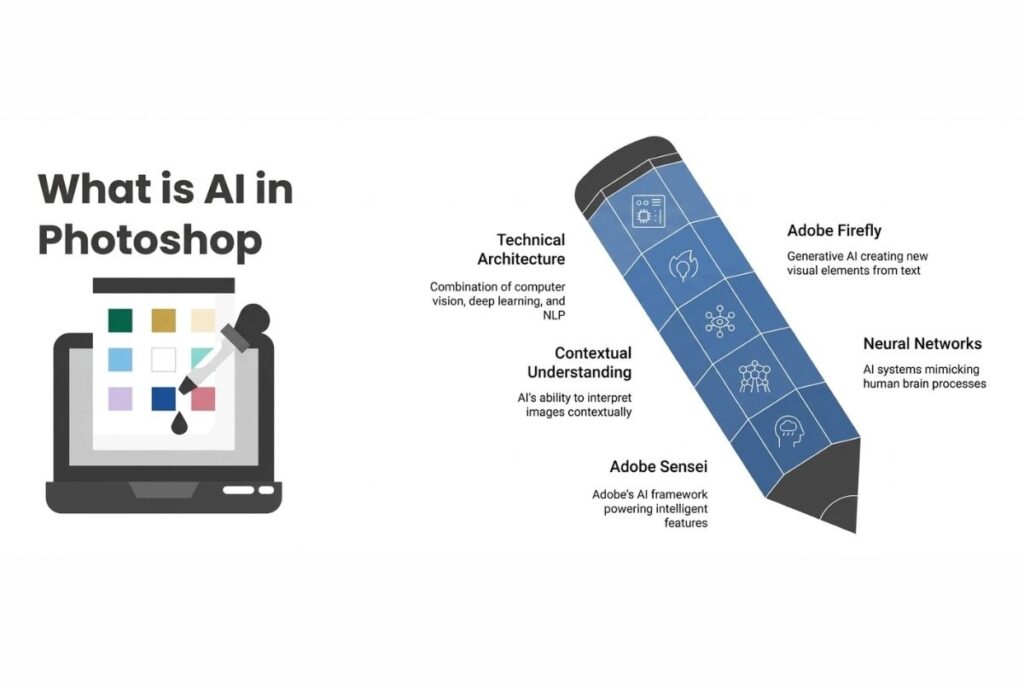
AI in Photoshop refers to intelligent tools powered by Adobe Firefly that automatically edit images, generate content, enhance details and speed up design workflows using machine learning. Artificial intelligence in Photoshop mainly comes from the Adobe Firefly model.
This AI engine understands image context textures, lighting depth and composition. It analyzes how elements interact within a scene and then generates results that blend naturally with the original image.
Instead of editing pixel by pixel you can simply select an area and describe what you want. Photoshop interprets the instruction and produces realistic results that match lighting conditions, shadows perspective and surrounding textures.
Photoshop then analyzes the image and generates results that match the environment of the photo or design. This technology relies on machine learning models trained on large datasets that help the software recognize objects, backgrounds, faces and visual patterns.
This technology powers several features such as Generative Fill, Generative Expand Neural Filters, Content Aware tools and AI based selections.
These tools help photographers, digital artists, marketers and content creators work faster while maintaining high quality results. Many professionals now integrate AI editing into their daily design workflow to speed up repetitive tasks and focus more on creativity and visual storytelling.
Main AI Features Available in Photoshop
To learn how to use AI in Photoshop effectively you should first understand the main AI powered tools. Each tool focuses on a different part of the editing workflow from image generation to automatic object detection.
Understanding when and how to use each feature helps you achieve more professional results while saving time.
Generative Fill
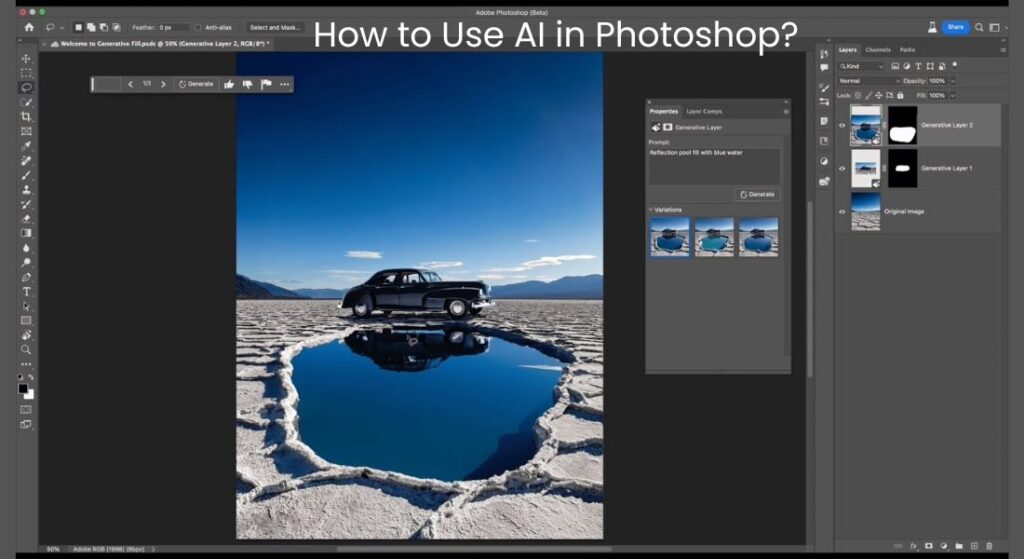
Generative Fill is one of the most powerful AI tools inside Photoshop. It allows users to add, remove or replace objects using simple text instructions. For example you can select an empty part of an image and type something like add mountains in the background.
Photoshop generates multiple realistic options based on the scene. The AI analyzes lighting direction, color balance perspective and surrounding textures to ensure the generated content blends naturally.
Designers often use Generative Fill to create backgrounds, extend landscapes, replace distracting objects or generate entirely new visual elements. It is particularly useful in advertising design product photography and digital marketing visuals where quick image variations are required.
Another advantage of Generative Fill is that it works non destructively. Photoshop creates the AI generated content on a separate generative layer which allows designers to modify or remove it later without affecting the original image.
Generative Expand
Sometimes an image needs more space around the subject. Instead of stretching the photo or duplicating pixels Generative Expand creates new areas that match the original image.
You simply increase the canvas size and Photoshop automatically generates the missing content. The AI fills the expanded area by analyzing patterns, textures and visual context from the existing image.
This feature works extremely well for social media graphics website banners, blog images and marketing visuals where different aspect ratios are required. Designers often need landscape portrait and square formats for different platforms.
Generative Expand allows them to adapt one image into multiple layouts without losing visual consistency. It is also useful for improving composition. If the subject appears too close to the edge of a photo, expanding the canvas can create better visual balance.
Neural Filters
Neural Filters use machine learning to transform images with just a few adjustments. These filters analyze facial features, lighting conditions and image structure to apply intelligent edits. Some popular filters include skin smoothing style transfer, smart portrait editing and photo restoration.
These filters help improve portraits, repair damaged photographs and apply creative effects without complex editing. For example portrait enhancement filters can adjust facial expressions, lighting and skin details while keeping the image natural.
Photo restoration filters are especially helpful when working with old photographs. They can remove scratches, restore clarity and enhance faded areas.
Many photographers use Neural Filters to speed up retouching workflows that would normally require detailed manual editing.
AI Selection Tools
Photoshop also uses AI to detect objects automatically. Tools like Select Subject Object Selection and Remove Background analyze the image and isolate elements instantly. The software identifies people, animals products and foreground objects by analyzing shapes, edges and color differences.
This saves significant time when working on product images, portraits or marketing visuals. Instead of manually tracing an object with selection tools users can create accurate selections in seconds.
These AI selection tools are particularly valuable for ecommerce designers who regularly remove backgrounds from product photos or create composite images for advertisements.
Step by Step Guide on How to Use AI in Photoshop?
Using AI features in Photoshop is easier than most people expect. Follow this simple workflow.
Step 1 Open Your Image
Start by opening the image you want to edit. AI tools work best with high resolution images because they provide more visual data for the algorithm.
Higher quality images allow the AI model to analyze details such as texture lighting and edges more accurately. This results in more realistic generated content.
Step 2 Select the Area
Use tools like the lasso tool object selection tool or quick selection tool to highlight the part of the image you want to modify.
The AI system uses this selection to understand where changes should happen. Precise selections help Photoshop generate more accurate results and prevent unwanted changes in other parts of the image.
Step 3 Activate Generative Fill
After making a selection click the Generative Fill option from the contextual task bar. A small text box appears where you can describe the change you want.
You can type instructions such as:
- add clouds in the sky
- remove the person in the background
- place a wooden table here
Photoshop will generate several variations. The AI analyzes the prompt and combines it with the visual information from the image to create realistic results that match the existing scene.
Step 4 Choose the Best Result
Photoshop usually creates three variations for each prompt. Review the generated results and select the one that matches your design. You can also generate more variations if needed.
Many designers experiment with multiple prompts to find the most natural looking result. Choosing the right variation ensures that lighting perspective and composition remain consistent across the image.
Step 5 Refine the Image
After generating AI content, refine the result using traditional Photoshop tools like adjustment layers color correction masking and blending.Combining AI editing with manual adjustments produces the most professional results.
Designers often tweak brightness contrast shadows and color grading to integrate AI generated elements perfectly into the original composition. This hybrid workflow allows users to maintain full creative control while benefiting from AI powered automation.
Real World Ways Designers Use AI in Photoshop
Understanding how to use AI in Photoshop becomes easier when you see real use cases.
Product Photography
Ecommerce brands often use AI tools to remove backgrounds, generate studio style environments and place products in realistic scenes. A simple product photo can become a complete marketing image within minutes. Designers can generate backgrounds that match a brand theme or seasonal campaign. This approach reduces the need for expensive photoshoots and speeds up the creation of product listings for online stores.
Social Media Content
Marketers create Instagram posts ads and banners using AI generated backgrounds and objects. Instead of searching for stock images they generate custom visuals that match the campaign theme. AI tools help marketing teams produce multiple creative variations quickly for different audiences and platforms.
Photo Restoration
AI Neural Filters can restore old photos by fixing scratches, improving clarity and enhancing facial details. Many photographers now use these tools to revive historical images or repair damaged family photographs. AI algorithms reconstruct missing textures and improve image sharpness while preserving the original look.
Creative Design
Digital artists use generative tools to experiment with concepts quickly. They can generate environments, textures and creative elements that would normally take hours to design manually. This helps artists explore different ideas during the early stages of a project before finalizing the design.
Tips to Get Better Results with AI Tools
AI tools are powerful but good results depend on how you use them. Use clear prompts when generating objects or backgrounds. Simple descriptions often work better than long instructions.
Make precise selections so the AI understands where the changes should appear. Work with high quality images whenever possible because more visual data helps AI produce realistic results.
Experiment with different prompts and variations. Slight changes in wording can produce completely different visual outcomes. Combine AI tools with traditional Photoshop techniques like masking blending modes and color grading.
Common Mistakes to Avoid
Many beginners expect AI to produce perfect results immediately. However professional workflows still require adjustments. Avoid using extremely complex prompts because they can confuse the AI model.
Do not rely entirely on automation. Human creativity still plays an important role in design. Also review AI generated elements carefully to ensure lighting shadows and perspective match the original image.
Another common mistake is ignoring composition. Even if AI generates realistic content the overall image must still follow strong visual design principles.
Why AI in Photoshop Matters for Designers?
Artificial intelligence is transforming digital design workflows. Tasks that once required advanced skills now become accessible to beginners. At the same time professionals can focus more on creativity instead of repetitive editing.
AI powered tools increase productivity, reduce editing time and open new possibilities for visual storytelling. For photographers, marketers and designers learning how to use AI in Photoshop is quickly becoming an essential skill in modern digital design.
Conclusion
Photoshop AI tools have made image editing faster and more creative than ever before. Features like Generative Fill Generative Expand Neural Filters and smart selection tools allow users to modify images with minimal effort.
By learning how to use these tools properly and combining them with traditional editing techniques you can create professional visuals, improve photos and design compelling graphics for marketing social media and digital projects.
If you want to design compelling graphics for marketing, social media and digital projects, you can also get professional help from our design team.
Mastering AI in Photoshop does not require years of experience. With a little practice and the right workflow anyone can start using these intelligent tools to produce impressive results.
FAQs
Can beginners use AI tools in Photoshop without advanced editing skills?
Yes, Most AI features in Photoshop are designed for beginners. Tools such as automatic object selection, AI background removal and generative editing allow users to modify images with simple selections or text prompts. Even someone with basic Photoshop knowledge can perform complex edits that previously required advanced skills.
Which Photoshop version includes AI features?
AI tools are available in the latest versions of Photoshop especially in Photoshop 2023 and newer releases. These versions include generative editing AI powered selections, smart retouching tools and neural filters powered by Adobe Firefly technology.
Do AI tools in Photoshop work offline?
Some AI features work locally but many generative tools require an internet connection. Features powered by cloud based AI models process data online to generate realistic content textures and backgrounds.
Is AI image generation in Photoshop free?
Photoshop includes several AI tools in the standard Creative Cloud subscription. However generative AI features may use credits depending on the plan. Adobe provides monthly generative credits for users to create AI generated images and edits.
Can AI in Photoshop create completely new images?
Yes. AI powered generative tools can create entirely new elements inside an image. Designers can generate objects, scenery textures or backgrounds that were not originally present in the photo. This capability makes Photoshop useful for concept design advertising visuals and digital art creation.