
In Exchange Server, admins use the New-MailboxExportRequest cmdlet to export or archive an Exchange mailbox to PST. This becomes necessary in several instances, such as for employee offboarding, backup and data security, data migration, compliance, or storage management. Nevertheless, the import and export to a PST file cannot take place directly in Exchange Server. Instead, you must possess the role permissions before performing the export.
During the task, several errors may prevail, which are crucial to deal with for the flawless functioning of your organization. Here is a detailed discussion on such errors, caused during the use of the New-MailboxExportRequest cmdlet, followed by their manual resolution. We will also talk about the importance of using professional EDB to PST converter software, such as Stellar Converter for EDB, in eliminating such errors.
Major New-MailboxExportRequest Errors and their resolution
Considering the significance of mailbox export to PST, abiding by all the requisite export steps is crucial. Still, several errors are likely to crop up, which need proper resolution before resuming the export task. Here are some of these common errors and their fixes.
Error 1: ‘Access to Path Denied’
This error occurs when a user does not have proper Read/Write permissions for the network location in the Exchange Trusted Subsystem. In any such circumstance, you will encounter the following message:
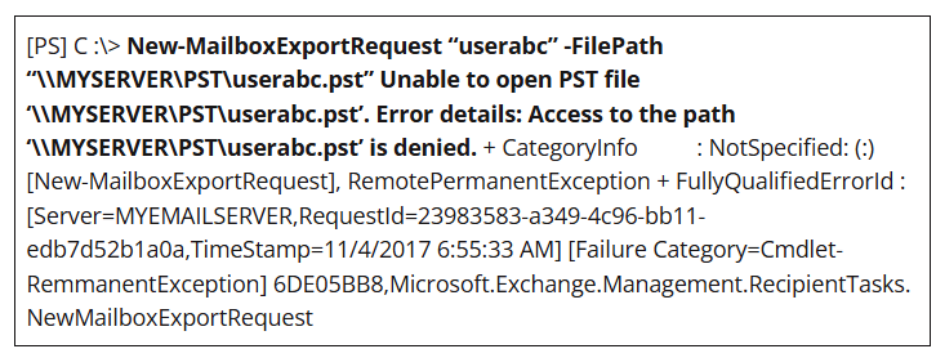
This situation arises mainly when the user enters the wrong UNC path in PowerShell. At times, it also happens when the user does not have the role of Mailbox Import Export assigned.
Even the admin does not have these permissions by default. Therefore, to resolve this error, getting the right permissions is essential. Here are the fixes:
1. Grant Read & Execute Permissions
Granting these permissions to the Exchange Trusted Subsystem (ETS) group will allow the admin to execute the request.
Limitation:
- Not applicable for Exchange Server 2007 and lower versions
- Does not guarantee complete error resolution
2. Create New Role Group
For this, you will first need to remove both the ManagementRoleAssignments for exadmins. Here is the command:
Remove-ManagementRoleAssignment -Identity “Mailbox Import Export-exadmin-1”
Remove-ManagementRoleAssignment -Identity “Mailbox Import Export-exadmin”
Next, proceed with the creation of a new RoleGroup by using the command below:
New-RoleGroup -Name “Exchange Mailbox Import Export” -Roles “Mailbox Import Export” -Members “Domain\exadmin” -DisplayName “”Exchange Mailbox Import Export” -Description “
This group will allow access to the mailbox export and import cmdlet throughout the Exchange Organization.”
Error 2: File could be locked
When using New-MailboxExportRequest to export a mailbox file to PST, you may encounter the ‘File Could be Locked’ error with the following message:
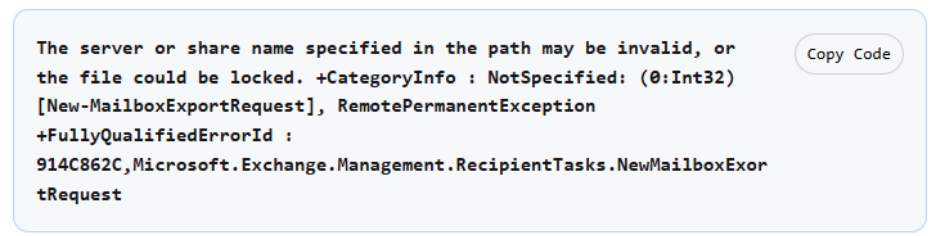
You can fix this error through two different solutions:
1. Grant the requisite Permission
Incorrect or no permission to export to a PST in the Exchange Server Infrastructure can be one of the reasons behind this error.
Resolution
Open the Exchange Management Shell with administrator credentials and execute the command below:
New-ManagementRoleAssignment –Role “Mailbox Import Export” –User DOMAIN\ExportUser
Restart the Exchange Services to fix the error.
2. Make the destination share accessible
Inaccessible or missing permission for the Exchange Trusted Subsystem becomes the reason for the error when using the New-MailboxExportRequest cmdlet. This can happen mostly when you export the mailbox to Network Attached Storage (NAS) shares, irrespective of the right user roles.
Resolution
To fix this issue, make sure to cross-check the full access for the user exporting the mailbox and the ETS group. If the error does not resolve, try exporting to a local or server share in place of a NAS device.
Error 3: Can’t connect to the mailbox database
When exporting mailboxes to PST, you may experience a failed request, but because of the short reporting of the New-MailboxExportRequest, you may struggle to find out the main reason. To resolve this issue, one of the methods is to use the Get-MailboxExportRequest cmdlet.
This will fetch the result similar to the screenshot given below, which shows two completed requests and one failed request.

Since completed requests do not get purged by themselves from the report, you need to clear them by using the following command:
Get-MailboxImportRequest -Status Completed | Remove-MailboxExportRequest
This will clear the completed exports and retain the failed requests with the following message:
Can’t connect to the mailbox database. Check that it is accessible and then try again.
This condition occurs when the exports are carried out by inaccessible or deleted mailbox databases.
Resolution
Try to dig deeper into the error by using the Get-MailboxExportRequestStatistics with the Get-MailboxExportRequest cmdlet.
Get-MailboxExportRequest -status failed | Get-MailboxExportRequestStatistics -IncludeReport | Format-List > \\ex01\pstfiles\report.txtCopy Code
This command will give a detailed report of the failed export error. It will help you to instantly identify the error. For example, one of the possible errors could be ‘InvalidContentFilterPermanentException’. If you investigate further, you may find issues with the ContentFilter parameter, such as an incorrect date format. Fixing such problems should resolve the error.
However, if despite applying such technical skills, the error ceases to resolve, it is wise to switch over to professional EDB to PST converter software.
Using Stellar Converter for EDB to resolve the Errors
One prominent alternative to avoid New-MailboxExportRequest Errors is to use professional EDB to PST converter software. This is where Stellar Converter for EDB can prove helpful. You can use this tool for exporting mailboxes to PST without hassles and with 100% precision. It emphasizes mailbox conversion without hampering server performance. You can also benefit from its multifarious features:
- Large EDB to PST migration offline
- Offline EDB to Live Exchange export
- Parallel processing technique for faster conversion
- Provides an option for mailbox export priority order during EDB to PST conversion
- Provision for selective mailbox conversion and archive mailbox conversion
- Can convert EDB files to PST and several other formats, such as EML, MSG, HTML, RTF, and PDF
- Converts hosted Exchange EDB to PST
- Advanced filter option to filter specific emails or mail items at the time of export
Using the software is simple and quick. For detailed information, you may refer to the user manual about using this professional EDB to PST converter software. You may order Stellar Converter for EDB from the official Stellar Info website. Depending on your specific requirement, you may opt for Corporate, Technician, or Toolkit versions of the software. In addition, the free trial version of this professional EDB to PST converter software is also available for download with limited functionality.
Conclusion
There can be many reasons to export the Exchange mailbox databases to PST, such as employee onboarding, compliance, server space optimization, data migration, etc. For any of these reasons, admins mostly use the PowerShell cmdlet New-MailboxExportRequest in the Exchange Management Shell. Often, this command gives several errors, making the export stuck in between.
Among the different errors, there could be ‘Access to Path Denied’, ‘File could be locked’, ‘Can’t connect to the mailbox database’, and so on. Administrators use several cmdlets to resolve these errors. While some resolutions work fine, others backfire, giving a mixed response to the manual resolution. To overcome such hassles and to guarantee the complete export of the Exchange database mailboxes to PST, it is better to use professional EDB to PST converter software.
MVPs and admins prefer using the Stellar Converter for EDB in this regard. This tool is quick, easy to use, and saves your valuable time. It comes loaded with features in its three distinct versions. To buy the ideal one, browse through the Stellar Info website. Alternatively, you may also opt for the free version of Stellar Converter for EDB.